
 Video Messages
Record personal videos to reach more customers.
 Video Agent New
Automatically send personalized videos with agentic AI.
 Vidyard Hosting
Manage all your business videos in one central spot.
 Vidyard AI Avatars
Generate personalized AI videos at scale.
 Vidyard HubsSee All Features →
Curate and share your best videos in one branded page
 Prospecting and Intros
Stand out and improve response rates.
 Sales
SalesGenerate more pipeline and close more deals.
 Post-Sales
Keep customers engaged after the deal closes.
MarketingHost video content and convert viewers into leads.
 Converting and Closing
Connect with buyers and close more deals.
 Corporate Comms
Create and deliver an internal communications strategy.
See Vidyard in Action →
“Personalized Vidyard video messages drove an 8x improvement in click-through rates and a 4x improvement in reply rates.” Read More
 Blog
BlogThe secrets to virtual selling and video best practices.
Video Agent HubCase studies and how-to videos for every revenue use case.
 Help Center
How-to and help articles for all things Vidyard.
 Fast Forward
Expert advice on all things virtual selling.
 Use Cases
Explore real ways to use video across your business.
AI Resource HubGuides and ideas for using AI in your workflow.
 Case Studies
Learn how our customers win more with Vidyard.
 Live Workshop Series
Showing you exactly how to put video to work.




The Best Loom Alternatives by Use Case
May 4, 2026
·
10 min read

Zoe Janssens
Looking for a Loom replacement? Compare the best Loom alternatives by use case, including Vidyard, Wistia Record, Descript, ClickUp Clips, and more.
Loom works for everything. That’s the pitch, and that’s the problem. A tool designed for everyone is optimized for no one. Loom’s feature set centers on screen recording and basic AI summaries, which means revenue teams that need CRM-triggered automation, viewer-level analytics, and personalized video at scale will hit a ceiling fast.
This guide breaks down seven Loom alternatives by specific use case, from AI-powered video automation for revenue teams to full editing suites for content creators.
TL;DR
- Choose Vidyard if you’re a B2B revenue team that wants AI-powered video to personalize engagement across the entire customer lifecycle.
- Choose Descript if you need a full video editing suite with text-based editing.
- Choose ClickUp Clips if your team already lives in ClickUp and needs async video inside your project workflow.
- Choose Tella if you’re a solopreneur building product demos, tutorials, or courses.
- Choose Screen Studio if you’re a macOS user who wants polished recordings without post-production.
- Choose OBS Studio if you’re an advanced user who needs customizable multi-source capture or live streaming.
- Choose Wistia Record if you’re already a Wistia customer creating marketing video content.
For B2B teams that need video to generate pipeline, Vidyard is in a category of its own. It’s the only platform that combines video hosting, async video messaging, AI-powered video creation, built-in editing, agentic workflow automation, and revenue analytics under one roof, with deep integrations into the tools GTM teams already run on.
Vidyard gives teams flexibility in how they scale video, whether they want to stay hands-on or automate entirely.
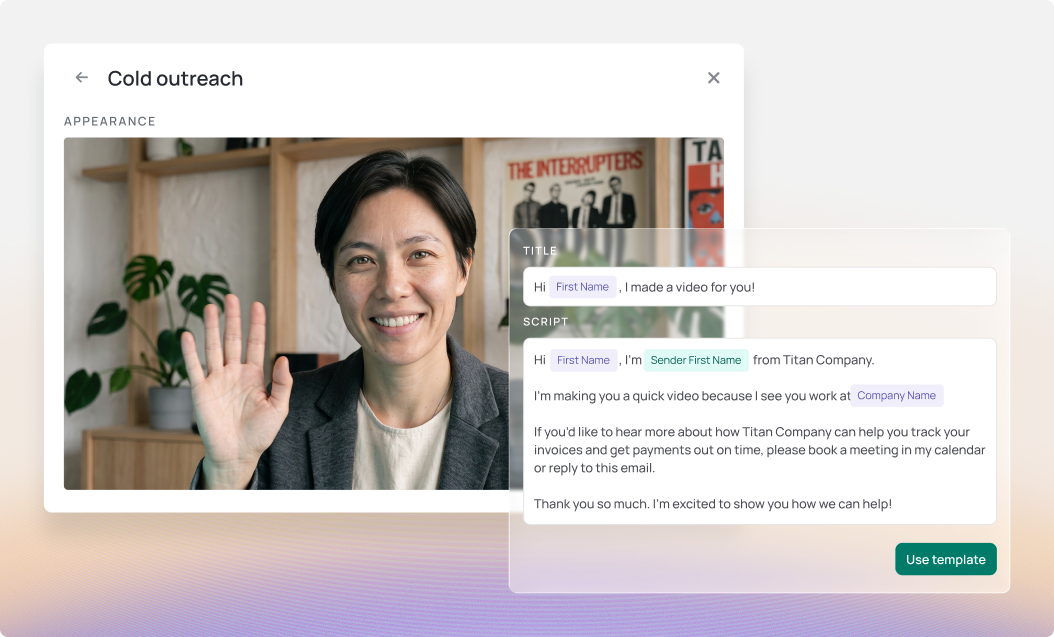
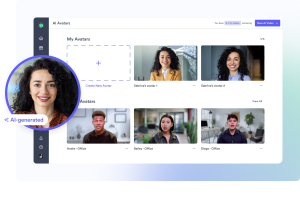
AI Avatars are ideal when reps want to create personalized videos quickly without recording every time, turning a short training clip into hyper-realistic videos in 29 languages. For fully custom, high-touch outreach, reps can still record Messages themselves.
Video Agent goes a step further. It’s an automated system that monitors signals across your CRM and sales stack, generates personalized AI Avatar videos, and delivers them to prospects automatically when trigger events fire, like a meeting booked, form submitted, or deal stage change.
Vidyard integrates with Salesforce, HubSpot, Salesloft, Gong, Marketo, and more. The bidirectional data flow surfaces video engagement directly in contact records and triggers follow-up workflows automatically. Vidyard’s Zapier integration extends the platform into virtually any tool in your stack.
The best Loom alternatives at a glance
| Tool | Standout Feature(s) | Starting Price | Best For |
| Loom | Screen and camera recording with meeting summaries and transcription | $0 (Free plan) | Internal teams needing quick async communication and collaboration |
| Vidyard | AI Avatars, personalized Video Messages, automated Video Agent, video hosting and editing, deep integrations across GTM stack, and revenue analytics | $0 (Free plan) | B2B revenue teams scaling personalized outreach |
| Wistia Record | Multi-speaker browser recording | $0 (Free plan) | Marketing teams creating professional video content |
| OBS Studio | Studio Mode with scene preview | $0 (Free, open-source) | Creators needing customizable recording and streaming |
| Screen Studio | Automatic zoom on screen actions | $9/month | macOS users creating polished product demos |
| Tella | Clip-based recording and rearranging | $13/user/month | Entrepreneurs creating tutorials and courses |
| ClickUp Clips | AI-generated transcripts and action items | $0 (Free Forever) | Teams using ClickUp for async collaboration |
| Descript | Text-based video editing via transcript | $0 (Free plan) | Content creators editing video by editing text |
What makes the best Loom alternatives?
What separates the best Loom alternatives from the rest is whether the tool was built for your specific workflow. A sales rep sending 200 personalized prospecting videos has fundamentally different needs than a product manager recording sprint updates or a creator editing a YouTube tutorial.
Four criteria separate the tools that fit your use case from the ones that don’t.
AI capabilities beyond transcription
Every tool now offers auto-generated titles and summaries, but only some can generate videos on your behalf or trigger automated outreach based on buyer behavior. Loom’s AI features center on auto-generated titles and descriptions for recorded videos. That’s table stakes. The question is what AI does after the recording, or whether it can eliminate the recording altogether.
Integration depth with your existing systems
When a tool connects to your CRM or sales engagement platform, video engagement data flows directly into contact records, giving you real-time insight into who’s watching, how they’re engaging, and when to act. These high-intent signals help reps prioritize outreach and follow-ups without any extra manual work.
When it doesn’t, you’re stuck copying links and updating records manually after every send, with no clear view of what’s actually driving engagement.
Analytics that connect to outcomes
View counts tell you someone clicked play. Viewer-level data tied to pipeline shows you who’s engaging, how deeply, and whether that engagement is actually moving the deal forward.
With that visibility, teams can double down on what’s working, prioritize the right accounts, and connect video activity directly to revenue outcomes.
Scalability
Can you multiply your video output without multiplying your recording time?
The ceiling on manual recording is a rep’s calendar. If every personalized video requires sitting down, hitting record, and delivering a fresh take, output only scales with headcount. The tools worth evaluating here are the ones that break that constraint.
AI Avatars let a rep record once and scale at volume. Dynamic scripting pulls CRM variables into every version so each video feels written for that recipient. Agentic workflows remove the rep’s time from the equation for repeatable touchpoints (follow-ups, onboarding triggers, renewal nudges) so the team’s best plays run automatically.
How to choose the best Loom alternative
We reviewed each tool across the criteria above, weighing use-case fit, AI depth, integration coverage, and analytics capabilities. For competitors, we analyzed G2 reviews, product documentation, and current pricing pages to capture both strengths and user-reported limitations.
For Vidyard, we conducted hands-on product evaluation and referenced published performance metrics from teams using the platform, including Vidyard’s own internal results. We prioritized tools that serve distinct buyer needs rather than listing seven near-identical Loom clones.
Best for B2B revenue teams that need AI-generated video and automated CRM-triggered outreach
Vidyard
- Best For: GTM teams that need personalized video operationalized across marketing, sales, and customer success
- Pricing: Free at $0; Starter at $59/seat/month billed annually
- Free Plan: Free plan available at no cost, includes 3 custom AI Avatars and up to 15 AI videos at no charge
Vidyard is an AI-powered video platform built for go-to-market teams. Where most screen recording tools stop at “record and share,” Vidyard adds two layers that no other tool on this list offers: AI Avatars that generate hyper-realistic videos of you without you recording, and Video Agent, a workflow automation system that sends those videos automatically when buyer intent signals fire in your CRM. Over 100,000 GTM teams use Vidyard to turn video into a measurable revenue channel.
The distinction matters for anyone evaluating Loom alternatives. Vidyard sits at the center of your revenue motion, connecting signals, content, and delivery into one automated loop. Vidyard’s AI layer doesn’t just generate videos, it ingests intent signals from across your revenue stack, dynamically personalizes variables in the script, generates the output through your AI Avatar, and triggers delivery automatically based on trigger events. The result isn’t a video with someone’s first name dropped in. It’s a coordinated motion that responds to buyer signals in real time, at scale, without the manual effort of a rep touching it.
Who should use Vidyard?
Sales reps, account managers, marketing teams, RevOps leaders and CSMs at B2B companies get the most from Vidyard. If your team sends personalized outreach, follows up after demos, or nurtures accounts through renewal cycles, Vidyard automates the video touchpoints that would otherwise eat hours out of every rep’s week.
Customer success teams benefit just as directly. Renewal touchpoints, onboarding walkthroughs, and proactive account updates are the kinds of high-frequency, repeatable communications that Video Agent handles automatically, freeing CSMs to spend time on the relationships that actually require them, not the ones that just need a timely message.
RevOps leaders evaluating Vidyard should focus on the analytics layer. Every video view syncs to CRM contact records, connecting engagement data to pipeline stages and revenue outcomes. That visibility turns video from a communication tool into a reportable channel.
Vidyard is not the right fit for content creators editing long-form videos, project managers tracking internal tasks, or teams that only need a basic screen recorder for ad hoc updates. Its value is clear when video is part of a revenue workflow.
Pros and cons
| Pros | Cons |
| Video Agent sends personalized videos automatically from CRM and MAP triggers | Limited to 15 AI Avatar videos on free plan |
| AI Avatars generate personalized videos automatically, all it takes is one 90 second training video | Specifically built for revenue teams (sales, marketing, customer success) who want to integrate video into their tools and workflows. |
| Native integrations require no webhooks, video engagement data starts flowing from day one | |
| Viewer-level analytics sync to CRM and tie video views to pipeline | |
| Seat-based pricing with no per-video usage charges | |
| Teams using video outreach see 26% more replies than text-only |
Standout features
- AI Video at Scale. AI Avatars and Video Agent let teams generate and send personalized videos automatically based on CRM triggers, without recording every message.
- Built for Revenue Workflows. Native integrations with CRM and sales tools power dynamic personalization, automated sends, and seamless data flow into your GTM stack.
- Engagement That Drives Pipeline. Viewer-level data shows exactly who watched and how they engaged, syncing to your CRM as high-intent signals to prioritize deals and trigger next steps.
- Personalized Campaigns. Not Just 1:1 Sends. Launch video campaigns across entire prospect lists using dynamic scripting and branded experiences, without sacrificing personalization.
- Designed to Drive Action. Custom in-video CTAs and sharing experiences turn views into meetings, clicks, and conversions, not just passive engagement.
How Vidyard works
The core differentiator is Video Agent, and understanding how it fits into a revenue workflow explains why Vidyard operates differently from every other tool on this list. Most screen recorders require a human to hit “record” for every video. Video Agent removes that step for the repeatable 60% of sales communication: follow-ups, meeting confirmations, nurture sequences, and renewal touchpoints.
Video Agent in action
Here is what the Video Agent workflow looks like once configured:
- A rep records a 90-second training video. Vidyard generates their AI Avatar.
- The team sets up trigger rules across their existing stack (Salesforce, HubSpot, Marketo, Salesloft, or any connected tool via Zapier). For example, when a prospect books a meeting, send a personalized confirmation video. Or when a lead downloads a pricing guide, send a personalized intro.
- The team builds a repeatable Campaign, scripting the message, pulling in variables (first name, company, etc.), and standardizing the plays that are already working across the entire team.
- Video Agent generates the video using the rep’s AI Avatar, personalizes the script per recipient, and delivers it automatically.
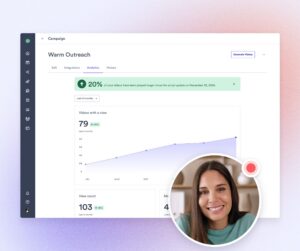
- Every view feeds back into the GTM stack and into Vidyard’s AI Analytics. Reps see who engaged and when. Managers get a high-level snapshot of adoption and engagement across the org, can drill into user-level activity to see who’s using AI video, review individual video performance, and track trends over time.
Once a rep has created their AI Avatar, they can share it with individual teammates or entire teams within the account. This means a manager or top-performing rep can delegate video creation to someone else without ever losing the personal touch of their own likeness. The person you share with can create videos using your avatar but cannot edit or delete it, keeping full control with the original owner.
The results from Vidyard’s own sales team put concrete numbers on this workflow: 40+ hours saved per rep per month, 100+ additional sales accepted leads per month, and $100K+ in additional monthly revenue attributed to Video Agent.
For teams that still want to record manually, Video Messages covers that ground. The Chrome extension captures screen and webcam recordings with in-video CTAs, AI-assisted scripts, and the same viewer-level analytics. Manual recording and AI-generated videos coexist on the same platform, which means a rep can send a hand-recorded walkthrough for a high-value deal and let Video Agent handle the rest.
How much does Vidyard cost?
Vidyard offers four tiers. Seat-based pricing means teams pay per user, not per video, which removes the usage caps that create friction on other platforms.
- Free ($0/month): 15 AI videos, stock avatars, 3 custom AI avatars, limited automated video creation, 5 manually recorded videos per month. No credit card required. This tier works for individuals testing AI video outreach before committing to a budget.
- Starter ($59/seat/month, billed annually): Full access to Video Messages, AI Avatars, analytics, and integrations. The Video Agent add-on is available at $24/seat/month (billed annually) and includes unlimited AI videos, 3 custom AI avatars, and unlimited automated video creation and delivery.
- Teams (custom pricing): Built for departments scaling Video Agent across multiple reps. Includes expanded avatar options and team-level analytics. Contact sales for a quote.
- Enterprise (custom pricing): Designed for organizations with advanced security, compliance, and deployment requirements. Contact sales for a quote.
The free plan is the fastest way to evaluate whether Vidyard fits your workflow. The Starter plan unlocks the full feature set for teams ready to test Video Agent and deeper CRM integration.
See how easy it is to start. Take Vidyard for a free test drive.
FAQ
Does Vidyard offer a free plan? Yes. Vidyard’s free plan costs $0 with no credit card required. It includes 15 AI videos, access to stock avatars, 3 custom AI Avatars, 5 manually recorded videos per month, and limited automated video creation.
How is Video Agent different from just recording and sending a video? Video Agent is a workflow automation system, not a recording tool. When you record a video manually with Video Messages, you control the message and hit send. When you configure Video Agent, it monitors your CRM for trigger events (a meeting booked, a form submitted, a pipeline stage change) and automatically sends an AI Avatar video for each event. The rep sets it up once. Video Agent runs continuously after that.
Best for marketing teams who need branded video content
Wistia
- Best For: Marketing teams creating polished demos, podcasts, and collaborative content
- Pricing: Free plan available; paid plans start at $79 a month
- Free Trial: Yes, available on Pro and Advanced plans
Wistia is a browser-based recording feature built into the Wistia video marketing platform. It handles screen and webcam capture, multi-speaker sessions, and AI-powered editing without requiring downloads or separate tools. Recordings flow directly into Wistia’s hosting and analytics infrastructure, eliminating the export-upload-share workflow that fragments most video production processes.
Wistia is built into a platform trusted by over 440,000 customers. It makes the most sense for teams already using Wistia for video hosting and marketing. If you’re evaluating Wistia Record as a standalone recorder, the value proposition weakens. This is a feature within a platform, not a replacement for a general-purpose screen recorder.
Who should use Wistia?
Marketing teams producing demos, tutorials, webinars, and customer testimonials will find Wistia’s workflow efficient. The multi-speaker recording capability lets guests join via link without creating accounts or downloading software. The AI editing tools (speech enhancement, auto-trimming, social clip creation) handle post-production tasks that would otherwise require a separate editor. The built-in teleprompter with AI script generator speeds up recording for teams, creating scripted content at volume.
Wistia does not serve revenue teams running outbound sales motions. It has no trigger-based automation, no viewer-level analytics tied to pipeline. Every video requires a human to record it and share it manually. Teams looking to automate personalized outreach or scale video production beyond what they can manually record will hit Wistia’s ceiling quickly.
Pros and cons
| Pros | Cons |
| AI editing tools handle speech enhancement, trimming, and social clips in-browser | Users cite limited video editing options and some friction in the screen recording experience |
| Recordings flow directly into Wistia hosting and analytics with zero export steps | Lack of robust customization options, like additional sizing templates and advanced editing features |
| Browser-based workflow means fast setup and collaboration without software installs | Users find the saving workflow for video edits like thumbnail changes a bit clunky |
| Users report the interface is accessible even without video production experience |
Standout features
- Multi-speaker browser recording: Guests join via link to participate in interviews, podcasts, or collaborative demos without downloads or account creation
- AI-powered editing suite: Speech enhancement removes background noise, auto-trimming cuts dead air, and social clip creation generates shareable segments automatically
- Built-in teleprompter with AI script generator: Record scripted content without memorization or external tools
- Direct integration with Wistia’s marketing platform: Recordings appear in your Wistia library immediately, ready for hosting, analytics, and embedding
- Free tier: Test the full recording and editing workflow before committing to a paid plan
How Wistia works
Wistia runs entirely in your browser. You choose what to capture (screen, webcam, or both), hit record, and the tool handles encoding and upload in the background. For multi-speaker sessions, you send a link to guests. They join the recording session without creating an account. The tool captures each speaker’s audio and video separately, giving you control over layout and editing after the session ends.
Core workflow:
- Open Wistia in your browser
- Select capture source (screen, webcam, or both)
- Invite guests via link for multi-speaker recordings
- Record your session
- Apply AI editing (speech enhancement, trimming, social clips)
- Video appears in your Wistia library, ready to share or embed
The AI editing layer runs after recording finishes. Speech enhancement cleans up audio without manual EQ work. Auto-trimming cuts dead air. The social clip generator finds high-engagement moments and exports them as standalone videos. These tools save post-production time for teams creating content at volume.
Your recording becomes a hosted video asset with analytics, custom player controls, and embed options immediately. Teams already using Wistia for video marketing eliminate the export-upload-share cycle. Teams not on Wistia lose this advantage entirely and should evaluate whether the recording features alone justify adopting the broader platform.
How much does Wistia cost?
- Free: $0. Includes 1 user, 25 GB storage, 200 GB bandwidth, video recording and editing.
- Business: Free 14-day trial, $79/month for 3 users (+$25/month for additional users, 250 GB storage, 1 TB of bandwidth, Hosting, Analytics, Marketing features
- Enterprise: No public pricing, custom packages available when you talk to sales
The free tier gives you full access to recording and editing features.
FAQ
Can I use the recording features without paying for the full Wistia platform? Yes, the free plan includes recording and editing features. You can record, edit, and share videos without upgrading. The value of the recording features grows substantially when you use the broader Wistia platform for hosting, analytics, and marketing workflows. As a standalone recorder, it competes with free tools that don’t impose media limits.
Does Wistia integrate with CRMs or sales engagement platforms? Wistia does offer marketing stack integrations, especially for marketing automation. When you connect Wistia to tools like HubSpot, Adobe Marketo Engage, or Salesforce Pardot, you can capture leads with in-video forms, pass contact data into your marketing platform, and use viewer activity to segment, score, and nurture prospects. For HubSpot users, Wistia engagement can appear on the contact record, including viewer-level details like heatmaps, which can help teams trigger follow-ups and tailor outreach based on what someone watched, rewatched, skipped, or clicked.
Best for advanced users who need customizable multi-source capture or live streaming
OBS Studio
- Best For: Advanced users capable of using open-source software who want multi-source screen capture, or streaming, along with recording
- Pricing: Free and open source
- Free Trial: N/A (free software)
OBS Studio is a free, open-source recording and live streaming platform built for users who need full control over their capture setup. It supports multi-camera workflows, scene composition, and plugin-based customization through a powerful API. Teams use it for webinars, live events, tutorial production, and any scenario where multiple video sources need to be combined into a single output.
The tradeoff is steep. OBS Studio gives you total control, but it assumes you know what to do with it. There’s no onboarding, no hosted sharing, no analytics dashboard. You get a file when you’re done recording. Everything after that is your responsibility.
Who should use OBS Studio?
OBS Studio serves content creators, streamers, and technical teams who need advanced capture capabilities and are comfortable managing their own video infrastructure. If your workflow requires switching between multiple cameras, overlaying graphics, or streaming to platforms like Twitch or YouTube while recording locally, OBS Studio handles it. The plugin library extends functionality further: custom transitions, audio filters, source management tools, and integrations with third-party services.
Revenue teams, customer success workflows, and anyone who needs video to integrate with a CRM or trigger automated follow-ups will find OBS Studio missing the infrastructure those use cases require. OBS Studio outputs a video file. It doesn’t host it, share it, track who watched it, or connect engagement to pipeline.
Pros and cons
| Pros | Cons |
| Completely free with no usage limits or paywalls | Steep learning curve and non-intuitive interface for beginners |
| Strong device detection finds cameras and sources quickly | Users report slow performance and multi-second lag during live events |
| Powerful plugin API enables deep customization and extended functionality | UI becomes difficult when managing multi-camera workflows |
| High-quality full-screen recording with multi-camera support | Resource-intensive and causes performance issues on weaker hardware |
Standout features
- Studio Mode lets you preview scenes and sources before pushing them live, reducing on-air mistakes during broadcasts or recordings
- Multi-source composition combines cameras, screen captures, images, and overlays into a single output with full control over layout and transitions
- Plugin library extends core functionality through community-built tools for audio processing, scene management, streaming integrations, and custom effects
- Unlimited recording with no time caps, export restrictions, or file size limits
- Cross-platform support runs on Windows, macOS, and Linux with consistent feature parity
How OBS Studio works
OBS Studio operates through a scene-based workflow. You create scenes that contain sources (cameras, screen captures, images, audio inputs). Each scene can be configured independently, and you switch between them during recording or streaming. Studio Mode adds a preview layer so you can compose the next scene before transitioning to it live.
The software captures whatever sources you’ve configured and outputs to a file or streams to a platform. Recording settings control resolution, frame rate, encoder, and file format. Streaming settings handle bitrate, server configuration, and platform-specific requirements. Audio mixing happens in real time with per-source volume control and filters.
Core workflow:
- Add sources to a scene (camera, screen capture, image, text, browser window)
- Arrange and configure each source (position, size, filters, transitions)
- Set up recording or streaming output settings
- Switch between scenes during capture using hotkeys or manual controls
- Stop recording and retrieve the output file from your designated folder
Customization happens through plugins and scripts. The API allows developers to build extensions that add new sources, filters, transitions, or entire workflow tools. Users comfortable with scripting can automate repetitive tasks or build custom control interfaces.
How much does OBS Studio cost?
OBS Studio is free and open source. There are no paid tiers, no subscription plans, no usage limits, and no account required. You download the software, install it, and use it. The project is maintained by contributors and funded through donations and sponsorships, not through user fees.
FAQ
Can OBS Studio integrate with my CRM or track viewer engagement? No. OBS Studio is a capture and streaming tool. It outputs a video file or streams to a platform. It has no hosting infrastructure, no sharing features, no viewer analytics, and no integration with business systems like HubSpot or Salesforce. If you need video engagement data tied to pipeline or automated delivery based on CRM triggers, you need a platform like Vidyard, not a recording tool.
Is OBS Studio suitable for sales or customer success teams? OBS Studio solves a different problem. It’s built for users who need advanced capture control, multi-source composition, or live streaming capability. Sales and CS teams need tools that integrate with their tech stack, automate personalized video delivery, and measure how video affects conversion. OBS Studio records. You handle everything else.
Best for macOS users who want polished screen recordings with zero editing
Screen Studio
- Best For: macOS users seeking professional recordings without post-production
- Pricing: $29/month (monthly), $9/month (annual billing)
- Free Trial: Yes (duration not specified)
Screen Studio produces professional-looking screen recordings automatically. The tool applies automatic zoom to on-screen actions, smooths cursor movement, and adds visual polish while you record. You hit stop and the output is ready to share. No editing required.
The platform processes transcripts and subtitles locally on your device. No data leaves your machine for AI processing. For teams with strict privacy requirements or individuals who prefer local-first workflows, this matters. Screen Studio also records iPhone and iPad screens via USB, detecting device model and color automatically for product demo workflows.
Who should use Screen Studio?
Screen Studio serves individual creators, developers, and product teams building demos, tutorials, and social content on macOS. If you’re recording product walkthroughs for your website, creating onboarding videos for your SaaS, or producing tutorial content for YouTube, Screen Studio removes the production bottleneck. The automatic enhancements mean you can record once and ship immediately.
The tool does not fit revenue teams running multi-platform workflows, customer success teams tracking engagement in a CRM, or anyone working on Windows or Linux. Screen Studio is a recorder with built-in polish, not a video platform with sharing infrastructure, analytics, or automation. If your workflow requires viewer-level engagement data, CRM integration, or automated video delivery, you need a different tool.
Pros and cons
| Pros | Cons |
| Automatic zoom and cursor smoothing produce polished output without editing | macOS only; Windows and Linux users cannot use it |
| Local transcript processing keeps data on your device | No viewer analytics or engagement tracking available |
| Simple pricing at $9/month with no per-seat model | No CRM integration or workflow automation capabilities |
| Use on up to 3 personal macOS devices per subscription | Limited audio editing features |
Standout features
- Automatic Zoom: The recorder focuses on on-screen actions without manual keyframes or post-production zooming
- Smooth Cursor Movement: Shaky cursor motion gets stabilized in real time during recording
- Local Transcript & Subtitles: All AI processing happens on your device; no data sent to external servers
- iPhone/iPad Recording via USB: Connect your device and Screen Studio detects model and color automatically for product demo recording
How Screen Studio works
Screen Studio runs as a native macOS application. You launch the app, select your recording area (full screen, window, or custom region), and start recording. The tool applies automatic enhancements in real time. When you stop recording, the output includes smooth cursor movement, automatic zoom to important actions, and visual polish that typically requires a separate editing pass.
Core workflow:
- Launch Screen Studio and configure recording area
- Record screen, iPhone/iPad, or both simultaneously
- Stop recording; enhancements are already applied
- Export or share the polished video immediately
The tool generates transcripts and subtitles locally using on-device AI processing. This approach keeps your content private and eliminates dependency on cloud transcription services.
Screen Studio does not include sharing infrastructure, hosting, or analytics. You export a video file. Distribution, measurement, and follow-up happen outside the tool. If your workflow ends at “create a polished recording,” Screen Studio delivers. If your workflow includes “track who watched and for how long” or “send this video automatically when a prospect books a meeting,” you need a platform with those capabilities built in.
How much does Screen Studio cost?
Screen Studio offers two billing options with identical features:
- Screen Studio (Monthly): $9/month, all features included, use on 3 personal macOS devices
- Screen Studio (Yearly): $9/month billed annually, all features included, use on 3 personal macOS devices
Both plans include shareable links and full access to automatic zoom, smooth cursor movement, local transcription, and iPhone/iPad recording. The pricing structure does not gate features by tier or charge per seat. You pay $9/month regardless of how many videos you create or how long they run.
A free trial is available. Trial duration is not publicly specified on the pricing page.
FAQ
Does Screen Studio work on Windows or Linux? No. Screen Studio is macOS-only. Windows and Linux users need a different tool. If your team runs cross-platform workflows, Screen Studio will exclude non-Mac users from your recording process.
Can I track who watched my Screen Studio videos? No. Screen Studio exports a video file with shareable links, but it does not provide viewer-level analytics, engagement tracking, or CRM integration. If you need to know who watched, how long they watched, or what happened after they viewed, you need a platform like Vidyard that connects video activity to business outcomes.
Best for solopreneurs and creators building product demos and courses
Tella
- Best For: Solo creators producing polished demos, tutorials, and course content
- Pricing: Starting at $13 per user/month, billed annually
- Free Trial: Yes. 7 days, no credit card required.
Tella approaches screen recording differently than general-purpose tools. Instead of forcing you to nail a perfect single take, it records in smaller clips that you rearrange and edit later. The multi-layout system lets you switch between camera and screen views with transitions and zoom effects built in. AI-powered editing removes filler words, deletes silences, and lets you edit the video by editing the transcript. The result is a polished demo or tutorial without opening a separate editing suite.
The tool targets entrepreneurs and small teams producing content at scale. You record a product walkthrough in segments, rearrange the clips to match your narrative, apply layout transitions, and export in 4K. Tella handles the production polish that would otherwise require a dedicated editor.
Who should use Tella?
Tella serves solopreneurs, course creators, and small teams building product demos and educational content. If you’re recording tutorials for a SaaS product, building an online course, or creating demo videos for your portfolio, the clip-based workflow reduces the pressure to perform perfectly on camera. You can record your introduction separately from your screen walkthrough, rearrange the sequence, and apply visual polish without learning a traditional video editor.
The tool does not integrate with CRMs, does not provide viewer-level analytics, and does not automate video delivery. It’s a recording and editing tool. Teams sending personalized outreach, tracking engagement tied to pipeline, or automating video workflows will find Tella missing the infrastructure those use cases require.
Pros and cons
| Pros | Cons |
| Clip-based recording reduces pressure to nail perfect single takes | Users report bugs and lags that make basic video editing tasks, like trimming longer videos time-consuming |
| Multi-layout views with transitions produce polished results without separate editing | Saving and exporting videos is unreliable at times |
| AI editing removes filler words and silences automatically | Cumbersome cancellation process, difficult to manage subscriptions independently |
| 4K export and instant sharing for web embedding | Online editing requires a fast internet connection and may suffer from performance issues |
Standout features
- Clip-based recording: Record in smaller segments and rearrange later instead of committing to a single linear take
- Multi-layout transitions: Switch between camera-only, screen-only, and split-screen views with zoom effects and background options
- AI-powered editing: Remove filler words, delete silences, and edit video by editing the transcript
- 4K export: Produce high-resolution output for course content
- Instant sharing and embedding: Share via web link or embed directly into course platforms and websites
How Tella works
You start by recording clips. Tella’s interface lets you capture your screen, your camera, or both in short segments. Each clip becomes a building block. You record your introduction, then your product walkthrough, then your call-to-action as separate pieces. The timeline view shows all clips in sequence, and you drag to reorder them.
Core workflow:
- Record clips (screen, camera, or both) in any order
- Arrange clips in the timeline to build your narrative
- Apply layout transitions (camera-only to screen-share, split-screen effects)
- Use AI editing to remove filler words, trim silences, or edit via transcript
- Export in 4K or share instantly via web link
The AI editing layer works on the transcript. Tella transcribes your recording, and you delete words or sentences from the text. The video updates to match. Filler word removal happens automatically. Silence deletion trims dead air without manual scrubbing. The result is a tighter edit without learning keyframe animation or multi-track timelines.
Layout transitions add polish. You can start with a camera-only introduction, transition to a screen share with your face in the corner, then zoom into a specific UI element. Tella handles the animation. You choose the layout, set the timing, and the tool applies the effect.
The output is a sharable link or a 4K video file. Tella includes embedding options for course platforms and websites. You can also export the file directly for upload to YouTube, Vimeo, or your own hosting. The tool does not provide analytics on who watched or how long they engaged. It delivers the video. What happens after that is outside Tella’s scope.
How much does Tella cost?
Tella offers two paid plans with no free tier:
- Pro (Yearly): $13 per user/month, billed annually. Includes unlimited videos, unlimited recording duration, AI editing, instant sharing, 60 FPS export (up to 5 minutes), 4K export, and team workspace.
- Premium: $19 per user/month. Custom branding, custom domains, 60 FPS export
Both plans include a 7-day free trial with no credit card required. The Pro plan covers most solo creator and small team use cases. Premium is positioned for teams needing extended collaboration features or higher export limits.
FAQ
Can Tella integrate with my CRM or project management tool? No. Tella is a recording and editing tool designed for content production, not a business workflow platform. It does not integrate with CRMs, marketing automation systems, or project management tools. If you need video engagement data synced to HubSpot, Salesforce, or ClickUp, Tella is not built for that use case.
Does Tella offer viewer analytics or engagement tracking? No. Tella provides instant sharing via web link and embedding options, but it does not track who watched your video, how long they watched, or what actions they took afterward. The tool is optimized for creating polished content, not measuring its performance in a sales or marketing workflow.
Best for internal comms and agencies communicating with clients about projects
ClickUp Clips
- Best For: Teams on ClickUp who want async video inside their project workflow
- Pricing: Free (Free Forever plan includes in-app recording)
- Free Trial: Contact sales to inquire
ClickUp Clips is a screen recording feature embedded within the ClickUp work management platform. It functions as a communication layer that lives inside tasks, docs, comments, and chat. When your team already runs on ClickUp, Clips eliminates the friction of recording a video, exporting it, uploading it somewhere else, and pasting a link back into the project. The video stays in context. The discussion stays attached to the work.
AI automatically names, transcribes, summarizes, and generates action items from every Clip. You record a quick walkthrough of a design revision or a client deliverable update. ClickUp turns it into searchable text, a summary paragraph, and a list of next steps. Time-stamped comments let teammates respond to specific moments in the recording without watching the whole thing. For teams that live in ClickUp and need async video to replace status meetings or long Slack threads, Clips is the path of least resistance.
Who should use ClickUp Clips?
ClickUp Clips serves two audiences well.
The first is internal teams already using ClickUp for project management who want to add video communication without leaving the platform. Product managers walking through a feature spec. Designers explaining a mockup revision. Developers recording a bug reproduction. The video embeds directly in the task or doc where the work is happening. No context switching. No separate video library to manage.
The second audience is agencies and consultancies managing client projects in ClickUp. Recording a Clip to show progress on a deliverable, explain a design decision, or walk through a draft keeps the client in the loop without scheduling another call. The Clip lives in the shared workspace. The client can watch when it fits their schedule, leave time-stamped feedback, and the conversation stays threaded to the specific task. For teams that bill by the hour or juggle multiple client projects, this async layer saves meeting time and keeps communication documented.
Pros and cons
| Pros | Cons |
| Deep native embedding means Clips live inside tasks, docs, and chat without export steps | Only valuable if you’re already in ClickUp; no standalone use case |
| AI transcription and auto-generated action items turn recordings into documented next steps | No external sharing workflow or viewer analytics for customer-facing use |
| Free forever plan includes in-app video recording at zero cost | Users report performance slowdowns and steep learning curve at platform level |
| Time-stamped comments let teams discuss specific moments without rewatching | No CRM integration or pipeline-connected analytics for revenue teams |
Standout features
- AI transcription, summaries, and action items: Every Clip gets automatically transcribed, summarized, and turned into a list of next steps. The AI names the Clip based on content.
- Embedded playback in tasks, docs, comments, and chat: Clips live directly where the work happens. The video is part of the task thread, not a link to another tool.
- Time-stamped comments: Teammates can leave feedback at specific moments in a Clip. Discussions stay anchored to the exact frame that matters. No one has to describe “around the 2:30 mark.”
- Centralized Clips Hub: All Clips recorded across your ClickUp workspace collect in one searchable library. Find any recording by project, task, or keyword.
How ClickUp Clips works
ClickUp Clips is a feature within ClickUp, not a standalone product. You access it from inside a task, doc, comment, or chat. Click the Clips icon. Choose screen, webcam, or both. Hit record. When you stop, the Clip uploads directly to the ClickUp location you started from. No export. No upload step. The video is already embedded and ready to share with anyone who has access to that task or workspace.
The AI layer activates immediately. ClickUp transcribes the audio, generates a title based on what you said, writes a summary paragraph, and extracts action items. The transcript is searchable. Teammates can scan the summary to decide if they need to watch the full Clip or just read the takeaways. If they watch, they can leave time-stamped comments that start a discussion at a specific moment. The entire conversation stays threaded to the original task.
Core workflow:
- Open a task, doc, or chat thread in ClickUp
- Click the Clips icon and start recording (screen, webcam, or both)
- Stop recording; Clip uploads and embeds automatically
- AI transcribes, summarizes, and generates action items
- Teammates watch, leave time-stamped comments, and continue the discussion in context
The Clips Hub collects every recording across your workspace. Filter by project, task, or date. Search by keyword in the transcript. For teams that record dozens of Clips per week, the Hub is the central library that keeps everything findable.
ClickUp Clips focuses on project communication, not revenue workflows. It doesn’t integrate with CRMs, doesn’t track viewer-level engagement, and doesn’t send videos outside ClickUp’s sharing infrastructure. If your team already runs on ClickUp and needs async video for internal updates or client collaboration, Clips eliminates the friction of using a separate video platform. Revenue teams looking to send personalized outreach or measure video engagement against pipeline need different infrastructure.
How much does ClickUp Clips cost?
ClickUp Clips is included in all ClickUp plans, including the Free Forever tier. Pricing is based on the ClickUp platform, not Clips as a standalone feature.
- Free Forever: $0. Includes 60MB storage, unlimited tasks, unlimited free plan members, and in-app video recording.
- Unlimited: $7 per user/month. Billed annually. Adds unlimited storage, unlimited integrations, and advanced reporting.
- Business: $12 per user/month. Billed annually. Adds advanced automations, dashboards, and workload management.
- Enterprise: Custom pricing. Contact sales for advanced permissions, white labeling, and enterprise-grade security.
Additional AI features (transcription, summaries, action items) are available through ClickUp Brain, which is a separate add-on. Pricing for Brain is not publicly listed; contact ClickUp for details.
FAQ
Can I share ClickUp Clips with people outside my ClickUp workspace? You can generate a public link to share a Clip with external viewers, but they won’t have access to the task context, comments, or action items unless you invite them as guests to your ClickUp workspace. Clips are designed for internal collaboration and client communication within shared workspaces, not for broad external distribution.
Does ClickUp Clips work for customer-facing sales or marketing videos? No. ClickUp Clips has no CRM integration, no viewer-level analytics, and no way to track whether a prospect watched your video or what happened next. It’s built for project communication, not revenue workflows. If you need video for sales outreach, customer success, or marketing campaigns, you need a tool with CRM integration and pipeline-connected analytics.
Best for teams that need a full video and audio editing suite
Descript
- Best For: Content teams editing video and audio by editing text transcripts
- Pricing: Free plan available; paid plans start at $16/month (billed annually)
- Free Trial: Not publicly listed; contact sales to inquire
Descript approaches video editing from a fundamentally different angle than any other tool in this category. You edit the transcript, and the video updates to match. This text-first workflow turns video production into something closer to document editing, making professional-level editing accessible to anyone who can edit a Google Doc. For teams producing podcasts, marketing videos, training content, or social clips, Descript cuts production time dramatically. Users report reducing editing time by 75%, turning multi-hour projects into sub-hour workflows.
The AI toolkit extends beyond transcription into production-level features: Studio Sound removes background noise and enhances audio quality, AI voice cloning lets you correct mistakes without re-recording, and automated filler word removal cleans up speech patterns instantly. Dynamic captions, social clip generation, and speaker identification round out a feature set designed for content creators who need to ship polished video at volume. Descript is a full editing suite that happens to include recording.
Who should use Descript?
Descript serves content-first teams: marketing departments producing demo videos and social content, L&D teams building training libraries, podcast producers managing multi-episode workflows, and agencies creating client deliverables. The common thread is volume. If you’re producing one video a quarter, Descript is overkill. If you’re producing multiple videos per week and editing is the bottleneck, Descript removes that constraint.
The tool makes the most sense for teams who already think in terms of scripts and transcripts, where the spoken content matters as much as the visual. Sales reps sending quick personalized messages don’t need an editing suite. Neither do project managers recording async updates. Those workflows need fast recording and instant sharing. Descript optimizes for polish and production efficiency, not for speed from record to send.
Pros and cons
| Pros | Cons |
| Text-based editing feels fast and intuitive, even for non-editors | Hotkeys aren’t universal, slowing common actions compared to other editors |
| Users report cutting editing time to 25% of previous workflows | Some AI features are buggy; users specifically cite Underlord issues |
| AI voice tools let you fix mistakes without re-recording | File and project organization becomes unwieldy at scale |
| Accessible to teams without professional editing experience | Pricing and AI credit limits confuse users; support is weak |
| Step-by-step guidance reduces friction during complex workflows | Too much AI integration that isn’t always useful, per user feedback |
Standout features
- Text-based video editing: Edit the transcript, the video updates. Delete a sentence, that section disappears from the timeline. Rearrange paragraphs, the footage reorders. This is Descript’s core differentiator.
- Studio Sound: AI audio enhancement that removes background noise, normalizes volume, and improves clarity without manual mixing.
- AI voice cloning: Record your voice once, then type corrections or additions. The AI generates speech that matches your voice, eliminating re-recording for small fixes.
- Underlord AI assistant: Handles podcast workflows end-to-end (plan, script, record, edit, publish, marketing). Generates clips, show notes, descriptions, and blog posts from finished episodes.
- Multi-language transcription: Supports 30+ languages with speaker identification, making Descript viable for global teams and multilingual content.
How Descript works
Descript starts with a recording or upload. The platform transcribes the content automatically, generating a text document that represents every spoken word.
Editing happens in the transcript. You highlight a sentence and delete it; the corresponding video segment disappears. You drag a paragraph to a new position; the footage reorders to match. You type a correction; Descript’s AI voice feature generates audio that sounds like the speaker, inserting it directly into the timeline. This text-first approach means video editing feels like document editing.
Core workflow:
- Record or upload video/audio content
- Descript transcribes and generates an editable text document
- Edit the transcript (delete, rearrange, correct)
- Apply AI tools (filler word removal, Studio Sound, dynamic captions)
- Export or publish directly from Descript
The AI layer handles production tasks that traditionally require technical skill. Studio Sound cleans up audio in one click. Filler word removal scans the transcript and deletes every “um” and “uh” automatically. Dynamic captions generate and style subtitles without manual timing. Social clip creation identifies high-engagement moments and exports them as standalone videos. These features don’t require configuration or training. They run on the finished content.
Descript also includes remote recording for multi-speaker content (podcasts, interviews, panel discussions). Participants join via link, no software download required. Each speaker records locally in high quality, and Descript syncs the tracks automatically. This eliminates the audio quality degradation common in browser-based recording tools.
The platform supports collaborative editing. Multiple team members can work in the same project simultaneously, with changes syncing in real time. Version history tracks edits, so teams can revert to earlier cuts without losing work. For agencies and production teams managing client feedback loops, this workflow reduces the back-and-forth that typically stretches timelines.
How much does Descript cost?
- Free: $0. Includes 60 media minutes per month per editor, 100 AI credits (one-time), unlimited projects, unlimited dynamic captions, 720p export, web-link export up to 1 hour, 1GB upload file size, 5GB cloud storage, remote recording up to 2 hours session and 10 room participants. AI tools listed as “Limited.”
- Hobbyist: $16 per person/month; includes 10 media hours/month, 400 AI credits/month, and 1080p exports
- Creator: $24 per person/month; includes 30 media hours/month, 800 AI credits/month, and 4k exports
- Business: $50 per person/month; includes 40 media hours, 1500 AI credits/month, team-wide access to Brand Studio
- Enterprise: Custom pricing and features. Contact sales for team-wide deployments with advanced admin controls and support.
Descript’s pricing structure gates features and capacity by plan tier, with AI credits as a consumable resource. Users report confusion around plan limits and AI credit depletion, particularly on lower tiers where credits run out quickly. The free plan provides enough capacity to evaluate the platform, but production-level use requires a paid plan.
FAQ
Can Descript integrate with my CRM or sales tools? No. Descript is built for content production, not for sales or customer communication workflows. It has no CRM integration, no viewer-level analytics tied to pipeline, and no automated delivery based on buyer behavior. If you need video to connect to HubSpot, Salesforce, or your sales engagement platform, Descript isn’t the right tool. It produces polished content. It doesn’t track what happens after you publish it.
How does Descript compare to Vidyard for video editing? Descript is a stronger editing tool. Text-based editing, AI voice cloning, and Studio Sound give content teams capabilities Vidyard doesn’t offer. Vidyard is built for revenue teams who need to generate personalized video at scale, automate delivery based on CRM triggers, and measure engagement tied to pipeline. Descript edits the video you recorded. Vidyard’s AI Avatars generate videos you never had to record, and Video Agent sends them automatically when buyer intent signals fire. If you’re producing marketing content or podcasts, Descript is the better fit. If you’re a sales or CS team trying to scale personalized outreach, Vidyard solves a problem Descript doesn’t address.
Why Vidyard is the best Loom alternative
Most Loom alternatives solve the same problem Loom solves: record your screen, share a link. Vidyard solves a different problem entirely. It turns video into an automated, measurable revenue channel that runs without someone pressing record.
The difference starts with what AI actually does. Loom’s AI generates titles and descriptions after a rep has already done the work of recording. Vidyard’s AI generates entire videos meaning a rep who would have spent 20 minutes recording, reviewing, and sending a personalized message now spends zero. Multiply that across 50 prospects a week and the productivity gap becomes a pipeline gap.
Video Agent takes it further: when a prospect books a meeting, submits a form, or moves to a new pipeline stage, it automatically creates and sends a personalized AI Avatar video. One-time setup. Runs continuously.
Vidyard’s own sales team saves 40+ hours per rep per month and generates $100K+ in additional monthly revenue using Video Agent.
Viewer-level analytics sync directly to CRM records, connecting every view to a contact and a deal. You see who watched, how long they engaged, and what happened next in your pipeline.
For teams that need video to accelerate revenue, Vidyard is the tool built for that job.
The information provided in this article is accurate at the time of publication. Pricing, features, and availability may change. We recommend verifying details directly with each vendor before making a purchasing decision.