
 Video Messages
Record personal videos to reach more customers.
 Video Agent New
Automatically send personalized videos with agentic AI.
 Vidyard Hosting
Manage all your business videos in one central spot.
 Vidyard AI Avatars
Generate personalized AI videos at scale.
 Vidyard HubsSee All Features →
Curate and share your best videos in one branded page
 Prospecting and Intros
Stand out and improve response rates.
 Sales
SalesGenerate more pipeline and close more deals.
 Post-Sales
Keep customers engaged after the deal closes.
MarketingHost video content and convert viewers into leads.
 Converting and Closing
Connect with buyers and close more deals.
 Corporate Comms
Create and deliver an internal communications strategy.
See Vidyard in Action →
“Personalized Vidyard video messages drove an 8x improvement in click-through rates and a 4x improvement in reply rates.” Read More
 Blog
BlogThe secrets to virtual selling and video best practices.
Video Agent HubCase studies and how-to videos for every revenue use case.
 Help Center
How-to and help articles for all things Vidyard.
 Fast Forward
Expert advice on all things virtual selling.
 Use Cases
Explore real ways to use video across your business.
AI Resource HubGuides and ideas for using AI in your workflow.
 Case Studies
Learn how our customers win more with Vidyard.
 Live Workshop Series
Showing you exactly how to put video to work.



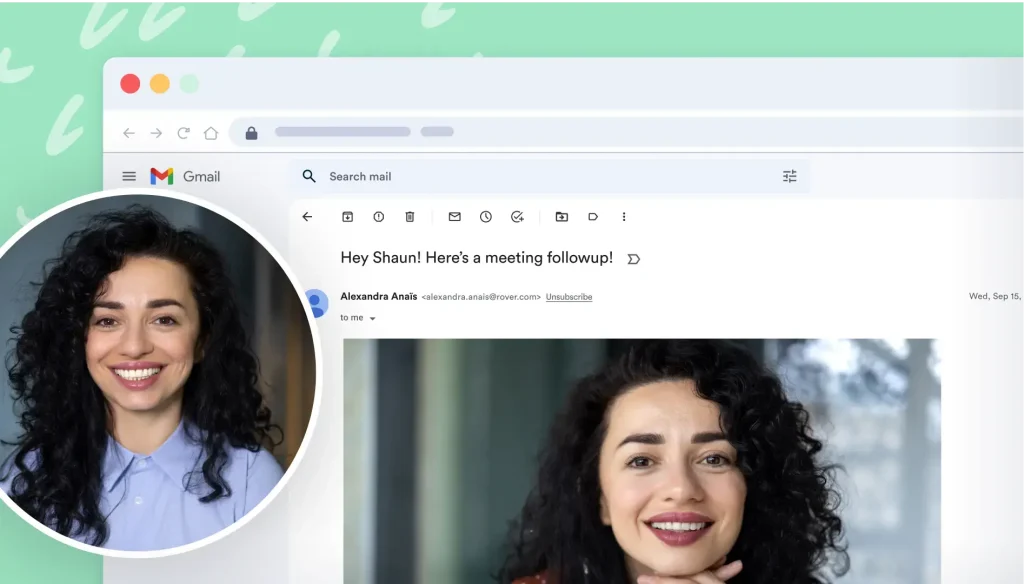

How to automate personalized video with Vidyard and Zapier
Jan 27, 2026
·
5 mins

V-Bot

We discuss the Video Agent and Zapier integration, how teams can get started, and best practices.
TLDR: Understand how your team can integrate Vidyad’s Video Agent across 8,000 apps, best practices, and pre-built templates for easy Zap creation.

We’re going to take a (not so) wild guess… Your team uses video.
You know that personalized video drives engagement, but manually recording videos does not scale. As a result, you might find your team reserving video for a few high-value moments in your sales process.
That’s why our team has been hard at work building Video Agent, which now integrates with Zapier. Vidyard’s Zapier integration connects Video Agent to 8,000+ apps so that teams can automate personalized AI Avatar videos across the buyer journey.
Now your team can automatically create and send personalized AI Avatar videos within the tools you’re already using across your sales tech stack.
We’re going to talk a bit about our Video Agent in case you’re not familiar and the various ways you can integrate using Zapier, hot to get started, and specific workflows your team can use.
What Vidyard’s Zapier integration does
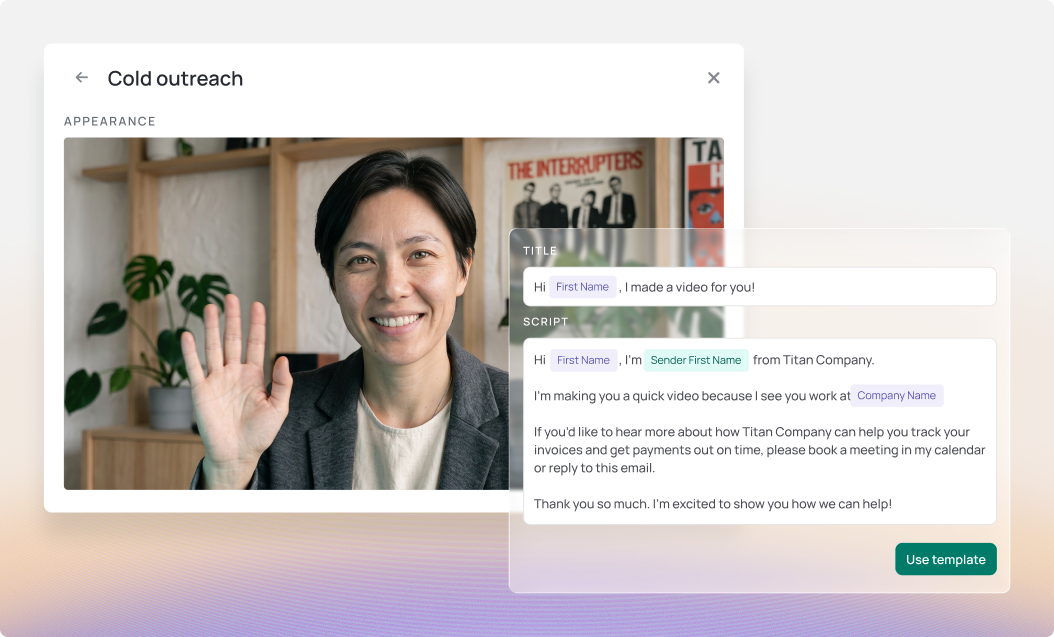
Have you tried Video Agent yet? This new tool from Vidyard enables teams to automatically create and send AI Avatar videos based on actions prospects and customers take. Someone downloads a white paper or requests a demo? A personalized video is automatically created and sent!
No matter what actions they take, your team can use the power of personalized video with no extra lift. Now with our Zapier integration, you can connect Video Agent to the rest of your tech stack through no-code automations that let your team build workflows (Zaps) using triggers and actions.
Whether a prospect books a meeting, submits a form, joins a campaign, or engages with your content, Video Agent can create a tailored video instantly. And with Vidyard’s new pre-built actionable workflows for tools like Salesloft, Chili Piper, and Mailchimp, teams can launch automation in seconds without any setup.
Video Agent triggers available in Zapier
With Vidyard and Zapier you have the power to create your own workflows — but here are some common triggers to send a video through our integration:
- New meeting booked (Calendly, Chili Piper, HubSpot Meetings)
- Form submitted (Typeform, HubSpot Forms, Webflow)
- Lead created or updated in the CRM (Salesforce, HubSpot, Pipedrive)
- New decision-maker looped into the sales process
- Contact added to a specific list, segment, or campaign
- Identified video view , when a known viewer watches your video, trigger follow-up in Slack, ActiveCampaign, Mailchimp, or other tools
Video Agent actions in Zapier
When you program a Zap, here’s what happens behind the scenes:
- Generate a personalized AI Avatar video from a Vidyard Campaign using contact data from the trigger
- Route the generated video link and key metadata into other systems for delivery and tracking
- Push video engagement data (views, watch time) to other systems
Using a team member’s avatar helps every automated video feel personal and consistent, giving buyers a familiar face at every touchpoint while still scaling outreach automatically.
How Zapier compares to native Vidyard integrations
Vidyard has worked hard on integrating with the existing tools you use, including a native Hubspot integration.
But, now with Vidyard + Zapier, teams have the power of easy, automated integration when your triggers and routing live outside our native integrations, or when you need to connect multiple tools quickly. We know that the tools teams are using are changing in the age of AI sales tools and we want to work everywhere for every type of team.
Zapier is used by teams of all shapes and sizes, often for multi-tool tech stacks, those with custom workflow requirements, and rapid prototyping.
How to connect Vidyard to Zapier
Zapier is designed to make integrations easy, even for teams with a lighter tech stack.
Here’s how to get started!
Step 1: Create or log in to your Zapier account
If you don’t already have an account, you can sign up for free. You can test things out with basic Zaps and upgrade as your team uncovers the power of the platform.
Step 2: Connect your Vidyard account
First, make sure you’re logged into your Vidyard account. If you have an administrator account, you may want to use this to create all of the Zaps (although team members can create their own as well).
In Zapier, on the left side, navigate to “App Connections” and click “Add New Connection” and search for Vidyard. Make sure you have pop-ups enabled, as the authentication to login and connect the accounts will appear.
Select “Authorize” and your account should now be connected!
If you’re having any trouble, our team is always here to help.
Step 3: Build your first Zap
Now you want to navigate to “Zaps” and click “Create” to get started.
Zapier is based on a trigger-and-action structure. You can set this up yourself or use Zapier’s AI Copilot to describe the Zap you want to create. While their AI is pretty cool, it’s also super easy to create Zaps yourself!
First, you want to choose a trigger app. Think of the trigger app as the other tool (not Vidyard!) within your workflow, like a Webflow, Chili Piper, or Salesforce. If these apps aren’t already connected, you’ll need to do Step 2 for each of these as well.
Then select the trigger event, such as a meeting booked.
Then add Vidyard as the action and “Generate campaign video” as the action event.
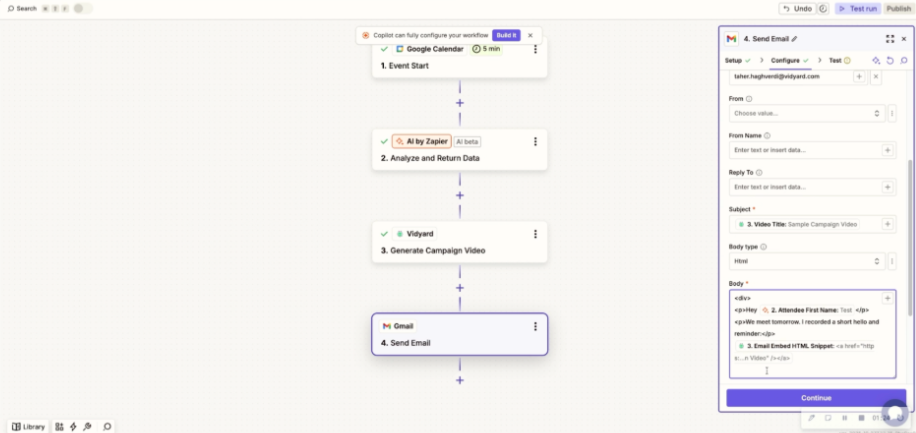
Your Zap will look something like this:
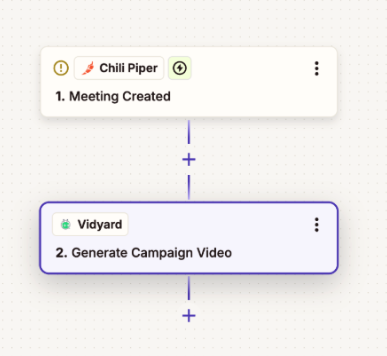
If you want some ideas, you can check out our pre-built Zap templates for common workflows to accelerate setup.
Step 4: Add in AI by Zapier
To create a script for your video, you will need to use AI by Zapier, which is built directly into the Zap flow.
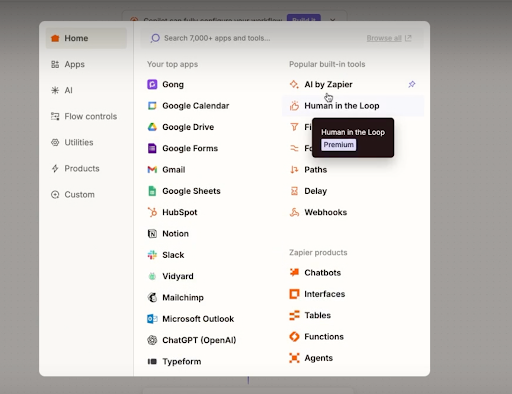
You can then input a custom prompt, which will generate the script result you want. We recommend testing out this prompt prior to going live, so you can ensure the video script generated is exactly what you’re looking for.
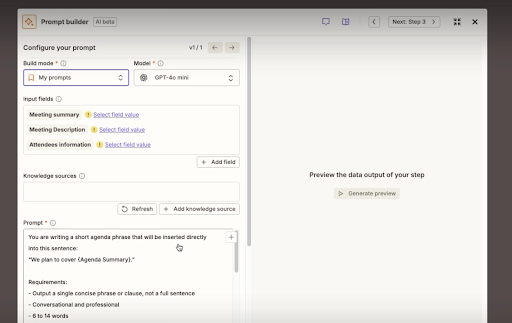
In this step, you can also have it pull in custom fields from the first tool, like Google Calendar, Chili Piper, or your CRM. So your video script can include your prospect’s first name, company, and other details.
Step 5: Map contact data to Video Agent
On the right side, you will see fields to add in to ensure that your personalized video is using the prospect’s information. You can input dynamic data like name, company, meeting times, meeting topics, and other customized fields (based on your Video Agent setup within Vidyard).
This will ensure that the AI Avatar video generated uses these fields.
Step 6: Configure video delivery
Next, choose how you want the generated video to be delivered. Depending on your workflow, you can send the video link and thumbnail through Gmail or Outlook, post it in Slack or Teams, create a CRM task with the video included, or pass it into a marketing automation sequence. If these tools aren’t connected to your Zapier account, you’ll need to do that to complete this step.
Because Zapier handles the handoff, reps don’t need to copy and paste links, the video is automatically routed to the next step in your process.
Need help? Watch this tutorial video or contact our team.
7 Video Agent workflows you can build with Zapier
Here are some ideas and in-depth explanations on how to create the events and actions in Zapier.
First-touch outreach for new leads
- Trigger: New lead created in your CRM (Salesforce, HubSpot, Pipedrive) or a high-intent form submission
- Action: Video Agent creates a personalized introduction video using the lead’s name, company, and source
- Delivery: Email sequence or direct send via Gmail/Outlook
The outcome: Improves the odds that your first touch gets seen and replied to, and ensures every new lead receives a video without adding manual work for reps.
Meeting confirmation videos (reduce no-shows)
- Trigger: New meeting booked in Chili Piper, Calendly, or HubSpot Meetings
- Action: Video Agent generates a personalized AI Avatar video confirming the meeting, introducing the rep, and setting expectations for the conversation
- Delivery: Email via Gmail or Outlook, and optionally a calendar follow-up message
The outcome: Helps reduce no-shows by making the confirmation feel personal and clear, ideally featuring a quick agenda and what they should expect.
Post-demo follow-up and next steps
- Trigger: When the opportunity moves to a new stage in your CRM post demo
- Action: Video Agent generates a recap video thanking the prospect, summarizing key points discussed, and outlining next steps
- Delivery: Email sent automatically, or a CRM task that prompts the rep with the video link ready to send
The outcome: Keeps momentum after the demo by making the next steps explicit and easier to agree to.
Proposal and pricing walkthrough
- Trigger: Proposal sent or opportunity moved to next stage in your CRM
- Action: Video Agent creates a personalized video walking through the proposal, highlighting key value points and addressing common questions
- Delivery: Email alongside the proposal document
The outcome: Helps prospects understand pricing faster and reduces back-and-forth by answering common questions upfront.
Onboarding welcome videos
- Trigger: Deal closed/won in your CRM, or a new customer record is created in your customer success platform
- Action: Video Agent generates a welcome video from the CSM, introducing themselves and outlining the onboarding process
- Delivery: Email or customer success platform
The outcome: Sets a positive tone for the customer relationship and reduces time-to-first-engagement.
Renewal and check-in reminders
- Trigger: Renewal date approaching (60, 30, or 14 days out) or scheduled QBR
- Action: Video Agent creates a personalized check-in video from the CSM, highlighting the account value delivered and inviting conversation
- Delivery: Email or Slack notification to CSM with video link ready to send
The outcome: Keeps CSMs proactive on renewals and makes outreach feel more personal at scale.
Event and webinar follow-up
- Trigger: Contact registered for or attended a webinar (via Zoom, Webflow, or marketing automation)
- Action: Video Agent generates a personalized thank-you video with key takeaways and a relevant CTA after event or webinar
- Delivery: Email sequence
The outcome: Stands out from generic post-event emails and increases the likelihood of a next step, like a demo request or content download.
Pre-built Zap templates to get started
We have some pre-built Zapier + Vidyard templates beyond creating and sending videos with Video Agent.
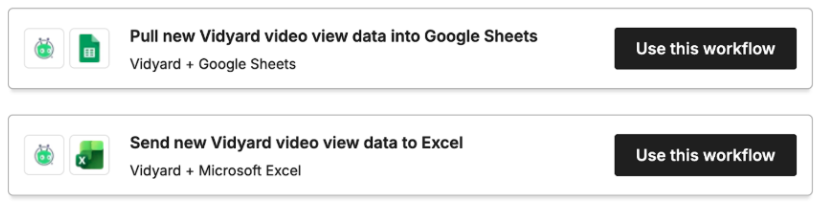
Video analytics templates
While creating and sending videos is awesome, your team also needs data to understand which scripts and workflows are resonating with prospects and customers.
With these pre-built Zaps, you can automatically send video details into a Google Sheet or Excel for reporting and QA.
Team notification templates
While videos are being generated and sent in the background, your team should still be aware of what’s going on. This Zap enables teams and managers to be informed of rep video activity and celebrate wins when critical videos are viewed.

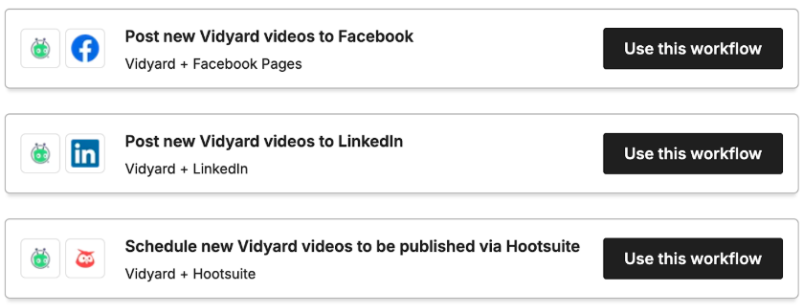
Social promotion templates
While we’ve mostly talked about using Video Agent and Zapier to create videos for sales prospects, we can’t forget about marketing! Teams can also use this integration to automatically create and post new videos to LinkedIn or other social platforms.
Best practices for Video Agent automation with Zapier
We get super excited thinking about all the ways teams can use video across their marketing, sales, and success teams. But, we even have to remind ourselves to take a breath and help teams nail the fundamentals before we get too far into the fantasy of what’s possible.
So here are some best practices for teams to get started using Video Agent + Zapier that you can build on over time.
Start with one high-impact workflow
Where are you already seeing success with video? This is a great place to start! Most often, teams find that starting with meeting confirmations or cold outreach can have the most impact as they’re high-volume use cases with pretty straight forward measurement.
Validate one workflow before moving onto the next. We know it’s hard to avoid temptation, but this will set a solid foundation for your team.
Personalize beyond first name
The more personalized your video can be, the better! Videos are most effective when they reference specific context: company name, industry, meeting topic, or pain points discussed.
Within the Zapier integration, you can map relevant data points in each workflow to customize the script with as much detail as possible.
Test your Zaps before going live
Before you start sending Video Agent generated videos to prospects, make sure you take the time to really test out your Zap. Does the script sound how you want it to? Is it coming from the right team member? Is it pulling in the right data to customize your script?
You should send test videos to yourself or a colleague before fully going live.
Monitor and iterate
Don’t set and forget! Make sure you’re tracking video view rates, response rates, and conversion metrics for each specific workflow. The data in Vidyard’s analytics and within your CRM can help you identify which videos and workflows are driving the most impact and optimize accordingly.
Measuring ROI from automated video workflows
How do you know that you’re getting value connecting Video Agent to your tech stack with Zapier? There are a few key ways to not only understand the value of this implementation, but how video is resonating with your prospects and customers.
Key metrics to track
- Video view rate: percentage of recipients who watch the video
- Watch time: how much of the video recipients consume
- Response rate: replies or next-step actions following video delivery
- Meeting show rate: for confirmation workflows, track attendance vs. no-shows
- Pipeline velocity: time from trigger event to next stage or closed deal
Benchmarking your results
There are two ways to benchmark results: against your own data and against others.
If you used personalized video previously, compare those videos to your Video Agent generated video metrics. If you haven’t used video previously and are jumping right in, compare video-based interactions to how your team used to do things.
You can also take a look at our Future of Revenue Report to understand how AI and video are reshaping GTM strategies and how you compare to teams who have thoroughly implemented AI video into their strategies.
Connecting Vidyard analytics to your reporting stack
While your video analytics is viewable within your Vidyard dashboard, you can also push this data to Google Sheets, Salesforce, or other business intelligence tools for centralized reporting. This helps managers get a better understanding of what’s resonating most, which they can then share across team members to help every rep be their best.
Vidyard + Zapier = a new world of opportunity
Video Agent and Zapier’s integrations removes the operational friction that previously prevented teams from scaling personalized video, unlocking a world where every prospect gets the same level of personalization and care.
As you get started, please share your wins with our team! We’re excited to see how our customers continue to surprise us in the unique ways video can help them close more deals and grow their revenue.
Want to try out Video Agent and Zapier? Get started for free with 15 AI Avatars and use Zapier to automatically create and send these videos using any of the workflows above.
FAQs:
Do I need a paid Vidyard plan to use the Zapier integration?
You do not need a paid Vidyard plan to use basic Zaps. However, if you want to use Vidyard’s Video Agent features to automatically create and send videos through Zapier integrations, you will need to ensure your team has this paid functionality.
What if I use HubSpot? Should I use Zapier or the native integration?
If you use HubSpot, the native Vidyard integration is the best place to start. It gives you seamless video tracking, logging, and email workflows directly inside HubSpot.
Zapier becomes the better choice when you want to extend a workflow beyond HubSpot, for example, adding extra steps like pulling in data from other tools, generating AI-written summaries, or coordinating multiple actions across your stack. Zapier makes it easy to chain together HubSpot, Video Agent, an LLM, and any other apps involved in the process.
How long does it take to set up a Video Agent workflow in Zapier?
Setting up a Video Agent workflow in Zapier takes less than five minutes!
Can I customize the AI Avatar video content for each workflow?
Yes, teams can implement dynamic data to customize the AI Avatars video for each workflow.
How do I know if my automated videos are working?
You can track the performance of your automated videos in your Vidyard Campaign analytics.
Each Campaign shows you how many videos were generated, how many were watched, and how viewers engaged with them. If your Zap pushes data into HubSpot, Salesforce, or another tool, you can also monitor replies, meeting show rates, and deal progression there.
Can I use Zapier to automate video for customer success, not just sales?
Yes, teams can use Zapier to automatically create videos for various customer success use cases including for onboarding, renewals, after an individual submits a support request, or if they notice a team isn’t using certain features or getting the most out of the product.