
 Prospecting and Intros
Stand out and improve response rates.
 Sales
SalesGenerate more pipeline and close more deals.
 Sales Support
Set your sales team up for success.
 Marketing
Host video content and convert viewers into leads.
 Converting and Closing
Connect with buyers and close more deals.
 Corporate Comms
Create and deliver an internal communications strategy.
See Vidyard in Action →
“Personalized Vidyard video messages drove an 8x improvement in click-through rates and a 4x improvement in reply rates.” Read More
 Blog
BlogThe secrets to virtual selling and video best practices.
 Video Agent Hub
Case studies and how-to videos for every revenue use case.
 Knowledge Base
How-to and help articles for all things Vidyard.
 Fast Forward
Expert advice on all things virtual selling.
 Templates
Free sales templates for every stage of the deal cycle.
 FAQ
FAQGet the answers to your top Vidyard questions.
 AI Resource Hub
Guides and ideas for using AI in your workflow.
 Case Studies
Learn how our customers win more with Vidyard.






30 Vidyard tips and hacks for power users
May 25, 2025
·
11 min read

Laura Wilkinson
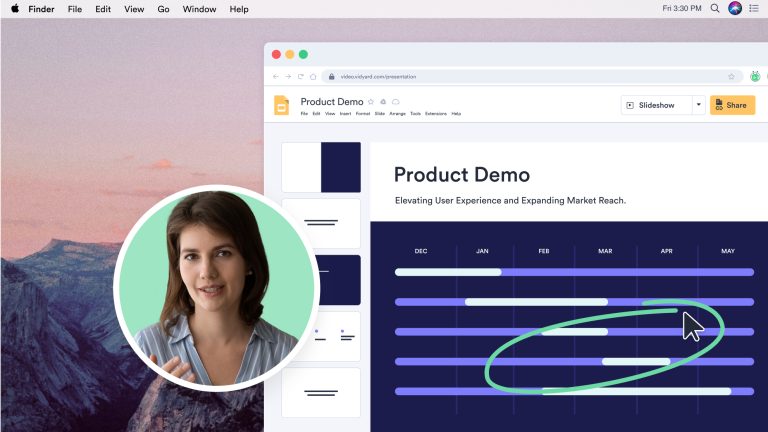
Impress your prospects, customers, and coworkers with super cool Vidyard hacks, tricks, and hidden features that’ll take your videos to the next level.
From video creation to hosting to building better buyer experiences, Vidyard can do a lot. But are you using it to its full potential?
We’ve built a list of helpful Vidyard hacks that even experienced users may not know about. Read on to learn how to streamline the video creation process, manage your content more efficiently, drive more viewer engagement …and wow colleagues and viewers with your Vidyard know-how.
Video creation hacks
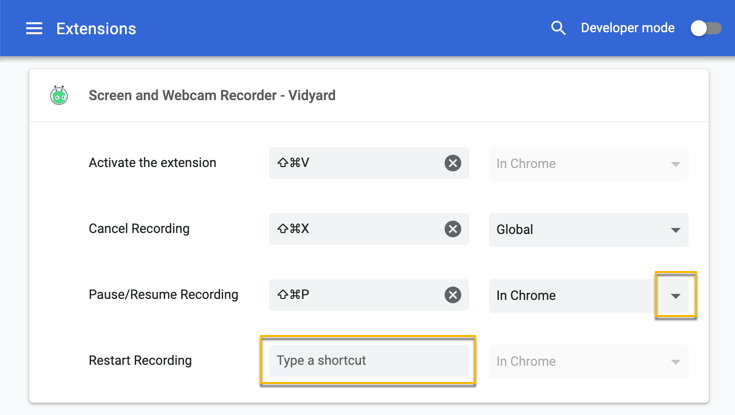
1. Chrome extension keyboard shortcuts
Using Vidyard’s Chrome extension to record videos? (You should be!)
Speed up your recording workflow with these handy keyboard shortcuts.
-
- Activate the extension
- Windows: Shift + Alt + V
- Mac: Shift + Option (⌥) + V
- Stop recording
- Windows: Shift + Ctrl + 2
- Mac: Shift + Command (⌘) + 2
- Pause/Resume recording
- Windows: Shift + Ctrl + 1
- Mac: Shift + Command (⌘) + 1
- Restart recording
- Windows: Shift + Ctrl + 0
- Mac: Shift + Command (⌘) + 0
- Activate the extension
Want to change the default shortcuts? You can do that, too. It’s available in the Vidyard extension settings (which you can access by entering chrome://extensions/shortcuts in your URL bar).
If you need help remapping your shortcuts, read this article on Vidyard’s Knowledge Base.
2. Hide Chrome extension recording controls
In some videos, floating on-screen recording controls can be distracting. You can hide the recording controls in Vidyard’s Chrome extension.
- Open the Vidyard Chrome extension
- Click the settings icon in the window
Disable Show recording controls

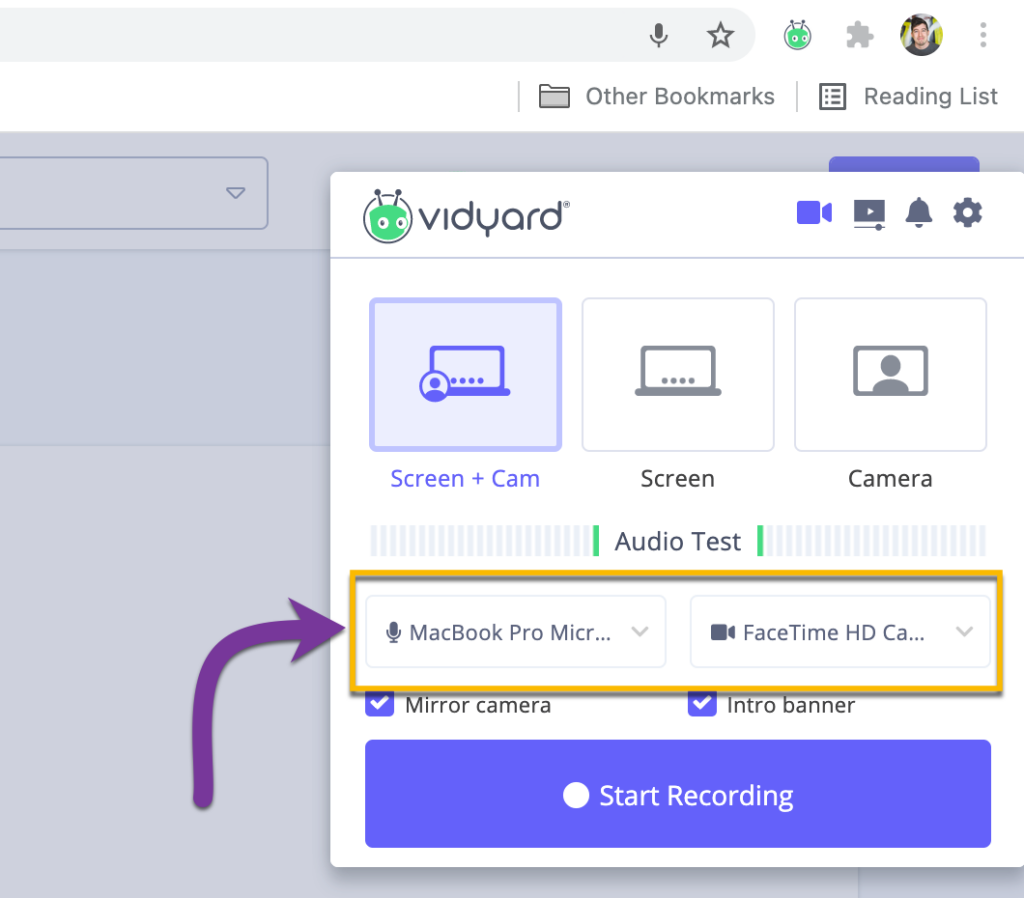
3. Use an external mic and/or camera
You don’t have to rely on your computer’s built-in webcam or your headphones. If you want to bump up the quality of your video messages, you can connect an external camera and mic.
- Open the Vidyard Chrome extension
- Click the dropdown boxes to view input sources
- Select your desired cam and mic from the appropriate dropdown menus
4. Record PowerPoint, Excel, PDFs, and more with the Vidyard desktop app
Vidyard’s browser extensions are, well, browser extensions. They’re great for recording inside a Chrome or Edge window, but if you want to record something outside your browser, you need another solution.
So we hacked ourselves. Vidyard’s Desktop App can record anywhere on your computer in up to 4K resolution.
5. Use speaker notes for the perfect video take
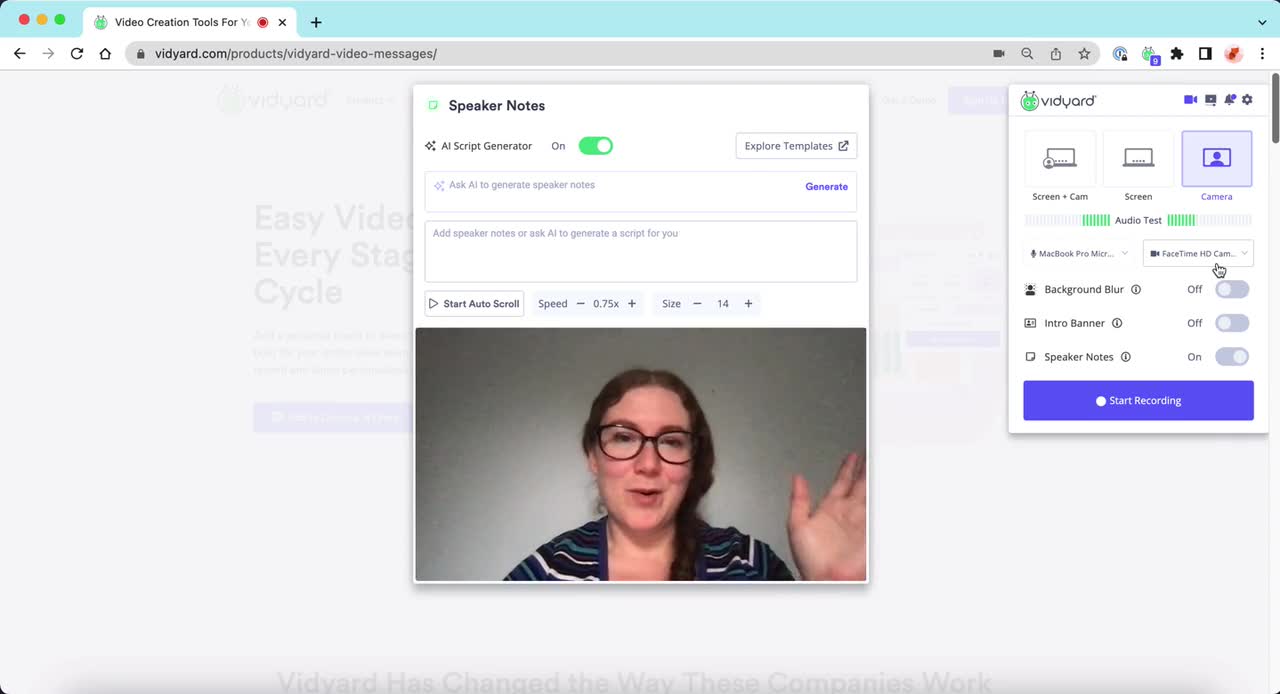
Whether you let AI help write your script or you have your own, leveraging Vidyard’s speaker notes can help you nail that video message in fewer takes.
- Open the Vidyard Chrome extension
- Choose the Screen + Cam or Camera options
- Toggle Speaker Notes on
- Generate, type, or copy your script into the speaker notes box
- Hit Start Recording when you’re ready to record your message
Bonus Tip: Hit Start Auto Scroll to use your speaker notes as a teleprompter while you record your video.
6. Let AI write you the perfect video script
About to hit record on your Vidyard Video Message, but not sure what to say? Let AI guide you and create your video sales script for you.
- Open the Vidyard Chrome extension
- Choose the Screen + Cam or Camera options
- Toggle Speaker Notes on
- Toggle the AI Script Generator on
- Enter your prompt in the AI Script Generator box
Hit Generate

7. Time out your video script with one click
Want to estimate your script’s length and make sure you stay within a certain time limit before you start filming? We created an easy-to-use Video Script Timer, where all you have to do is copy and paste your script—and voilà!
Just plug your script in and select your reading speed to discover your script’s length. When you know how long your script will be, you can make more informed decisions when creating your video. And more informed decisions mean fewer takes, giving you back valuable time.
8. Use video templates
If you want tried and tested video scripts, we have an entire library of free video templates and examples to pull from.
We asked sales experts to record templates for specific stages of the sales cycle, like cold sales outreach, prospecting follow-up, or deal progression. And we’re always adding more templates to the library, too.
You can pursue our Sales Templates page for best practices and accompanying email scripts, and you can also access a host of video templates right from within the Vidyard platform.
- Log into Vidyard
- Click the Templates icon in the Nav pane
- Choose your template use case, i.e., Prospecting
- Browse the library and choose Preview to watch the video example or Use to populate the template in your speaker notes
- Adjust your script as necessary, and hit Start Recording
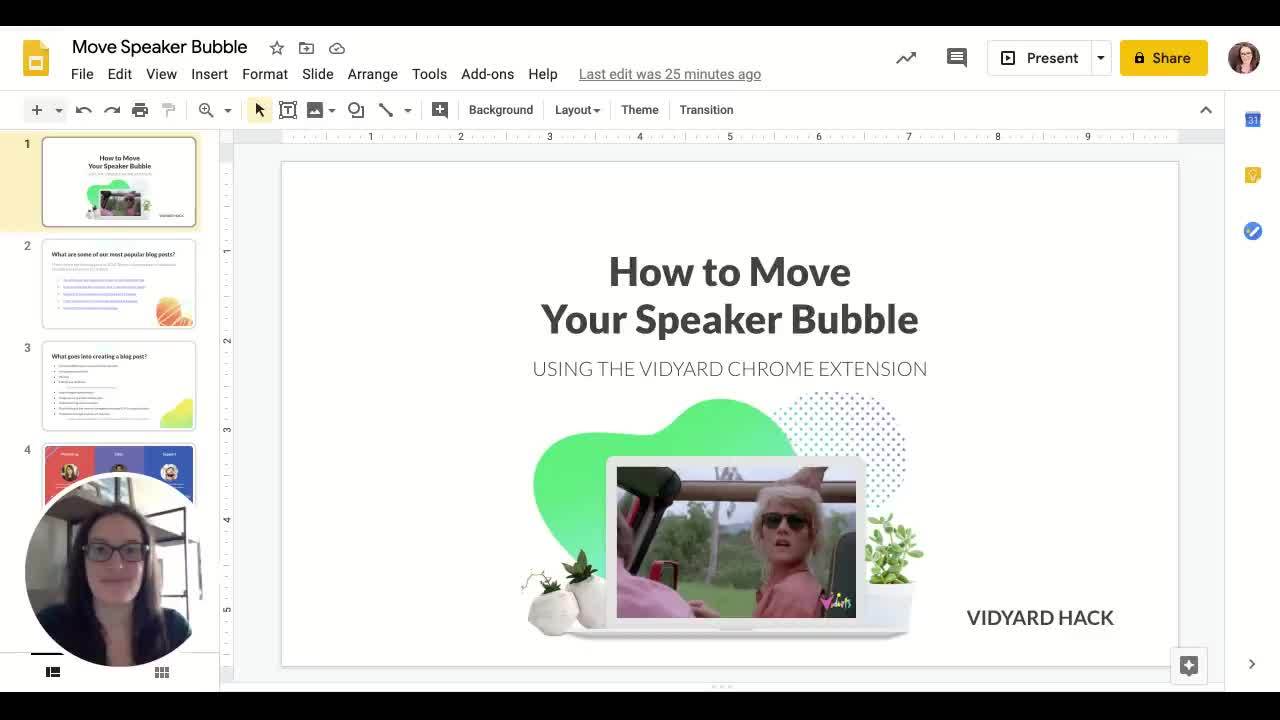
9. Move your speaker bubble
This one isn’t, strictly speaking, a hack. It’s just a super cool little-known feature. Simply click on your speaker bubble and drag it where you want it to appear on your screen.
Note: You can combine this with the bubble resizing hack to really customize the look of your hybrid screen record-webcam videos.
10. Resize your speaker bubble
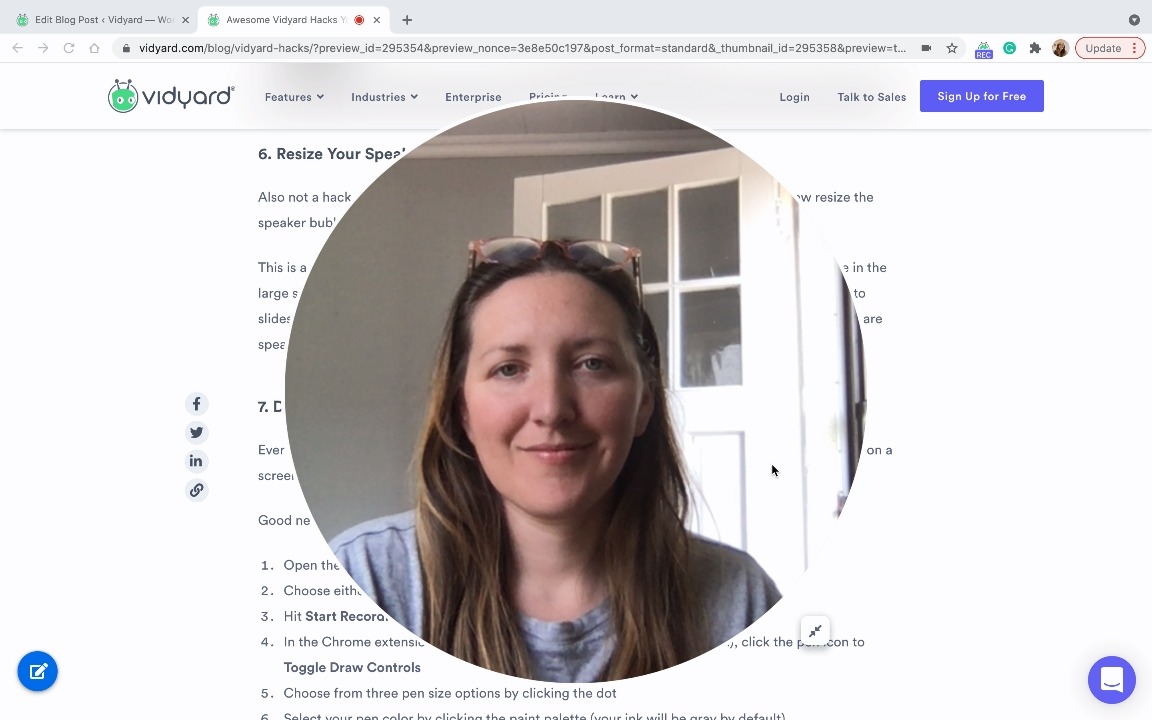
Also not a hack per se, but it is a new feature that you should all know about. You can now resize the speaker bubble to really customize the look of your hybrid screen record-webcam videos.
This is a great way to catch your audience’s attention immediately. Start with the bubble in the large size to introduce yourself, and then when you are ready to start your presentation and speak to slides or a website behind you, resize your bubble and move it to the side so they can see what you’re speaking about.
11. Blur your speaker bubble background
Messy Kitchen? Kiddos running around in the background? Or any other reason you might not want your background visible for a screen share vid? You can quickly and easily blur your background for a quick background cleanup.
- Open the Vidyard Chrome extension
- Choose the Screen + Cam option
- Toggle Background Blur on
- Hit Start Recording
12. Switch up your background using Zoom
With the transition to remote and hybrid work and the proliferation of video conferencing, virtual backgrounds have become more popular than ever.
But, you don’t have to restrict your virtual digs to your Zoom calls. You just have to set up a call where you’re the only participant.
- Open up Zoom and click New Meeting
- Once in, click the upward arrow next to Stop Video and select Choose Virtual Background
- Select your desired virtual background and close the popup window
- Click Record and choose where to save your meeting recording
- Once done, upload the recording to Vidyard
Bonus: With the Vidyard for Zoom integration, you can push your Zoom recording directly into Vidyard.
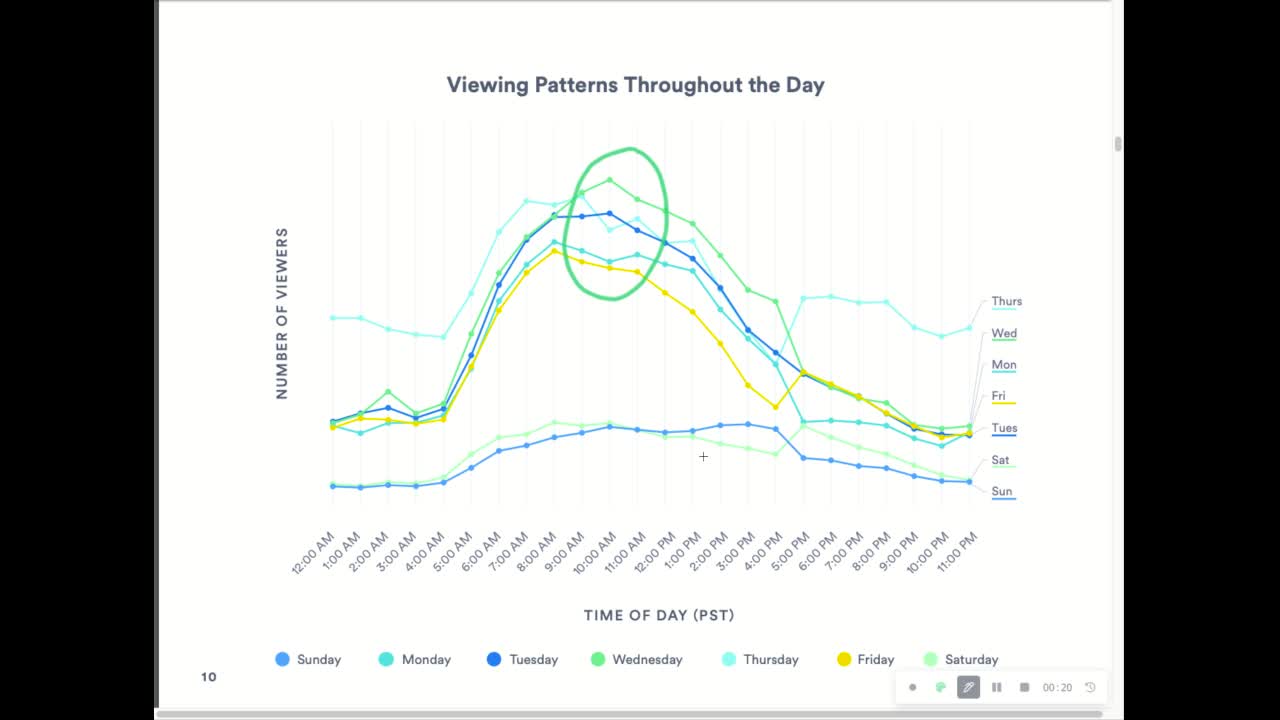
13. Doodle on your screen recording
Ever wanted to underscore a point you were making or draw viewer attention to something specific on a screen?
Good news! It’s totally easy with a little-known built-in feature with the Vidyard screen recorder.
- Open the Vidyard Chrome extension
- Choose either the Screen + Cam or the Screen option
- Hit Start Recording
- In the Chrome extension control panel (in the bottom right of your screen), click the pen icon to Toggle Draw Controls
- Choose from three pen size options by clicking the dot
- Select your pen color by clicking the paint palette (your ink will be gray by default)
- Use your cursor to draw on your screen
Whatever you draw will begin to fade in a few seconds, making it easy for you to highlight multiple things (for instance, if you’re recording a how-to video).
14. Go full-screen on a Google Slides presentation without losing your speaker bubble
While presenting from the Google Slides edit screen—which shows thumbnails of slides along the left-hand side of the screen along with edit options along the top—is a popular option, sometimes you want to minimize potential distractions.
This Vidyard hack makes the slide you’re presenting the focus of your screen.
- Click the downward arrow next to Slideshow in the upper right-hand corner
- Choose Presenter view to make your slides full-screen within your browser window
- Close or minimize the Presenter view popup (you don’t need it)
- To avoid having black bars around your presentation, resize your browser window to fit your presentation
- Open the Vidyard Chrome extension, choose the Screen + Cam option, and select Tab Only
Hit Start Recording to begin capturing your screen

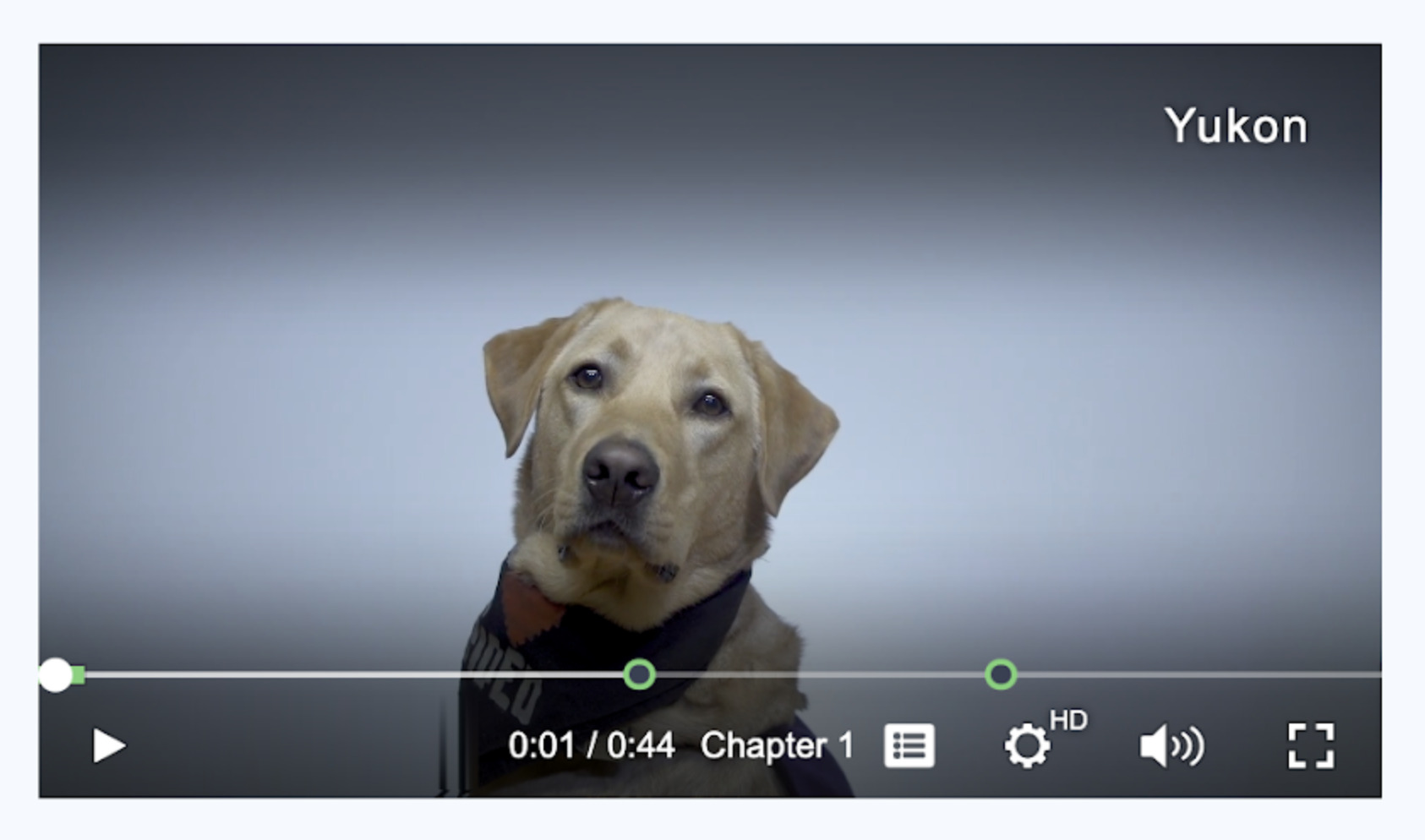
15. Add video chapters for better viewer experience
Video chapters make it easier for viewers to navigate your content and for search engines to rank your videos.
Vidyard has a built-in chaptering tool that makes it a snap to create video chapters. You can find it on your video’s Edit page below the Thumbnail section.Read our guide on video chapters to learn more.
16. Send personalized AI-generated videos with your AI Avatar
No time to record? Don’t want to go on camera? With AI Avatars, you can create and send personalized videos using just a written script.
Here’s how it works. First, you create a quick video to train your avatar. Once your avatar is ready, you write the script (or use the built-in AI script generator) that you’d like your avatar to deliver to your target prospect or customer. The result is a hyper-realistic video message that looks and sounds just like you sat down in front of the camera.
It’s a great way to scale up your outreach while giving you time back for those important conversations.
17. Automatically send follow-up videos with Video Sales Agent
Tired of prospects falling through the cracks?
You can use Vidyard’s Video Agent to automatically generate and send personalized video messages to buyers when they take specific actions like downloading a whitepaper from your website or booking time with your sales team. The workflows work based on pre-defined triggers and actions. Here’s a sample one to show you what we mean:
- A prospect downloads a report from your site
- That engagement signal prompts Video Sales Agent to automatically create and send a follow-up video for the buyer using an AI Avatar
- The buyer receives a perfectly timed, personalized video, thanking them for downloading the report and suggesting next steps
18. Cut out background noise with Krisp
Whether it’s chatter in an open office or your dog barking in the background while working from home, background noise can be a serious distraction in your videos.
Krisp is a Chrome extension that lessens background noise and works with the Vidyard Chrome extension. That means you can record videos with crisper, cleaner audio (even if your workspace is anything but).
- Enable the Krisp extension in your browser
- Open the Vidyard Chrome extension
- Set Krisp as your audio input source

19. Screen record on restricted pages
Some sites don’t allow you to begin a screen recording, but that doesn’t mean you can’t record those sites. Here’s a workaround with the Vidyard Chrome extension.
- Open the unrecordable site in a new tab.
- Launch a site that allows recording (such as Google) in another tab.
- Open the Vidyard Chrome extension.
- Choose the Screen + Cam or Screen option and select Full Desktop.
- Begin your screen recording on the other tab, then switch to the site you’d like to record.
- Once you’ve finished your recording, you can use the Trim option on your video’s edit page to remove the beginning portion of your video
20. Screen record while in incognito mode
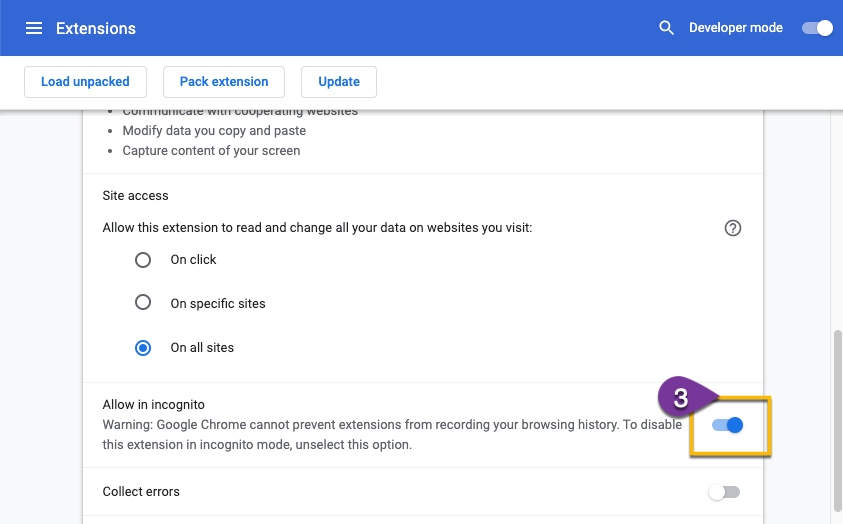
Sometimes you need to record in an incognito browser tab. (Common use cases include hiding personal information and resetting cookies.) No sweat—Vidyard’s Chrome extension can record in incognito mode.
- From your Chrome extension list, open the context menu for the Vidyard extension, and select Manage Extension
Toggle on Allow in Incognito
Video management hacks
21. Quickly access a video’s edit page
Need to get to a video’s edit page, but don’t want to comb through your Library to find it?
You can quickly access a video using its unique identifier, also called its UUID. Here’s an easy way to find a video’s UUD:
- Navigate to the video’s sharing page
- In the video’s URL, copy the sequence of numbers and letters that comes after https://video.vidyard.com/watch/
Here’s an example with the UUID bolded: https://video.vidyard.com/watch/rFyzL6xxMcCzsiQxzMUbg8
Once you have the UUID, you can jump straight to the video’s edit page in your Library.
- Open any video in your Library
- In the URL bar, replace that video’s UUID with the one you want.
- Hit Enter
22. Send a video in a LinkedIn message
Few know about this Vidyard hack yet, but you can now record and send a video using Vidyard in a LinkedIn message. This feature is a game-changer when using LinkedIn for prospecting. Instead of taking multiple steps to email someone a video, you can now send them an introductory video straight in your very first point of contact in a LinkedIn message.
- Install the Vidyard Chrome extension
- Open the Compose Message window in LinkedIn, and you should see the Vidyard logo at the bottom of the message window
- If you do not see the Vidyard logo, click on the Vidyard Chrome extension logo in your Chrome browser, go into Settings, and hit Reload
- Once the Vidyard logo is showing in the LinkedIn message window, you can click on the logo to start recording a video as usual
23. Record and share videos right through Slack
If you want to leverage Vidyard for an internal note, Vidyard also integrates with Slack.
Sometimes, you have a lot to tell your colleagues, but nobody wants to read an IM novel—and juggling schedules to set up a video conference is a pain in the neck. With the Vidyard integration, you can easily record and send an asynchronous video without leaving Slack. Can you say productivity hack?
Once you’ve added the Vidyard app to Slack, just type /vidyard to start recording. When you’re done, you can review the video, then DM it straight to a colleague or post it to a channel. The video plays right inside Slack. Viewers can react and comment to keep the conversation rolling.
24. Send Zoom recordings to your Library
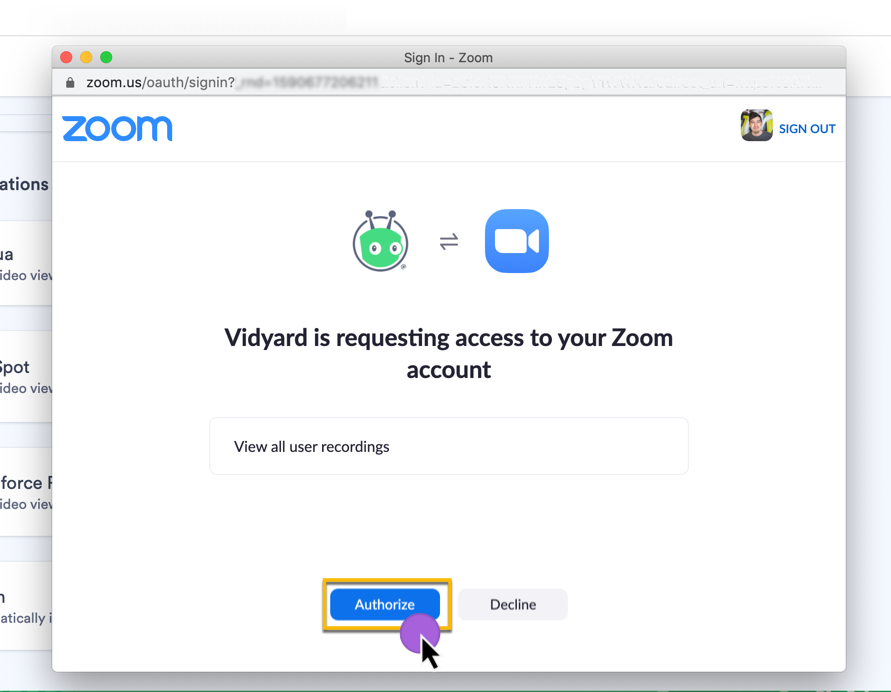
Vidyard’s Zoom integration makes it easy as pie for you to record a Zoom meeting and send it directly to your Vidyard Library.
Whether it’s a webinar you plan to share on social, a sales call you’d like to review later, or a team lunch and learn you want to save for those who missed it, you can quickly and easily save all of your Zoom calls in Vidyard.
The integration lets you automatically generate English-language captions for your Zoom recordings, secure your video, share it via a Vidyard Hub, and more.
Learn how to set up the Zoom integration in this Knowledge Base article.
25. Cross-publish Vidyard videos to YouTube
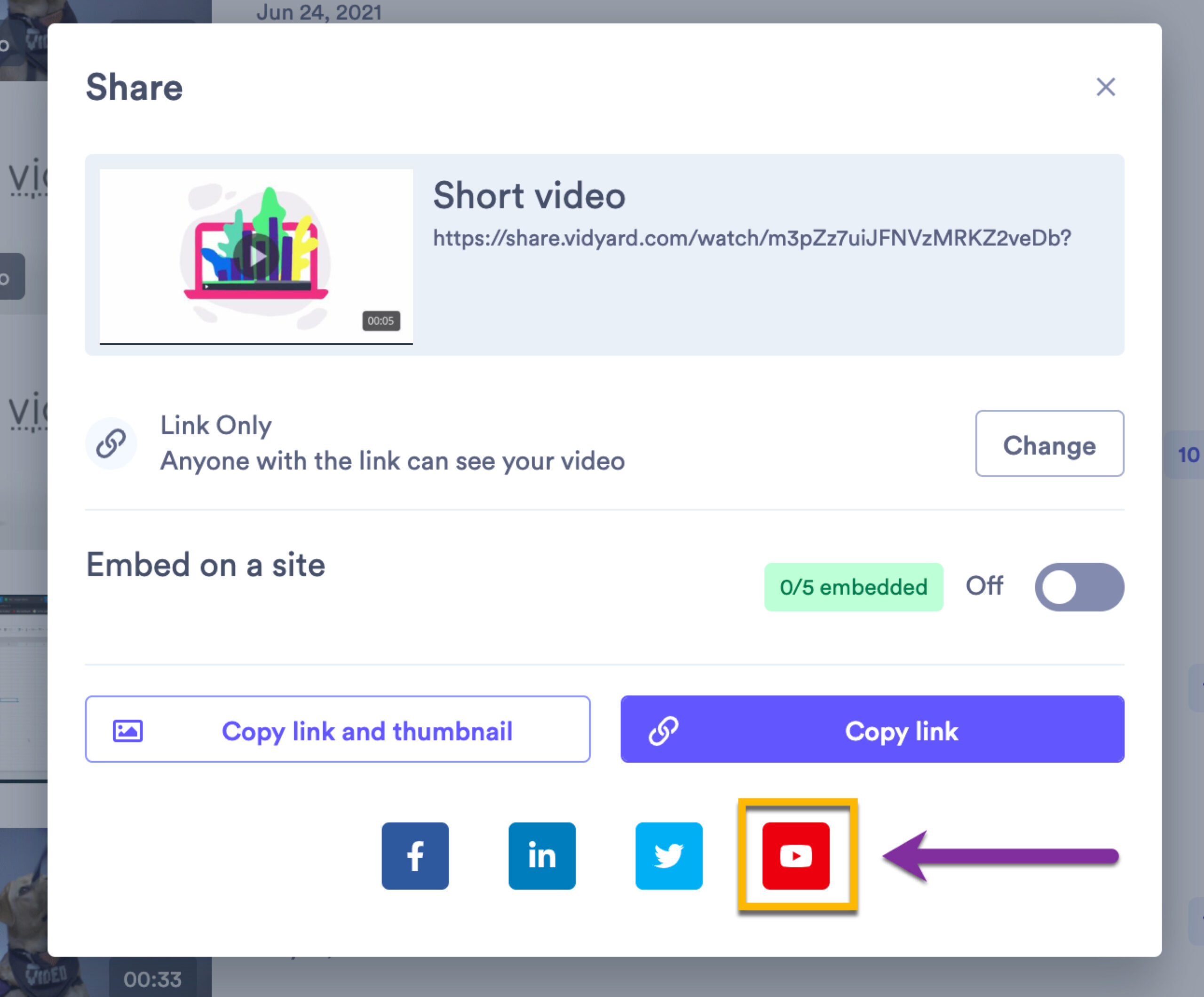
Your videos don’t have to live solely in your Vidyard video library. You can extend your content’s reach by publishing directly to YouTube.
Here’s how:
- Click Share next to a video.
- Select Embed, then pick YouTube.
- Choose the YouTube account you want to publish to. (If you haven’t connected your YouTube account to Vidyard, you’ll have to do that first.)
- Adjust your video’s properties, like its thumbnail, title, description, tags, and captions. You can also choose to add it to an existing playlist.
- Select whether video should be public, private, or unlisted.
- You’re done!
If you want to schedule the video to publish later, you can do that too. It’ll publish to YouTube as a private video, and will become public at the date and time you specify.
Find out more in this Knowledge Base article.
26. Personalize videos for multiple viewers using a single link
Need to send multiple personalized videos, but don’t want to juggle multiple video links? Vidyard lets you consolidate all those videos into one link using Campaigns.
Campaign videos automatically update with personalized details for each unique viewer. Each prospect gets a viewing experience that feels like it was made just for them, while you only have to create one video.
Here’s how to use it:
- Create a CSV list of target prospects
- Create a new Campaign in your Vidyard Library
- Augment the video title and script with dynamic variable fields that match the data in the CSV
- In the bulk video generator, upload your CSV
- Copy the single video link into all your outreach
Find out more in this Knowledge Base article.
27. Picture-in-picture mode
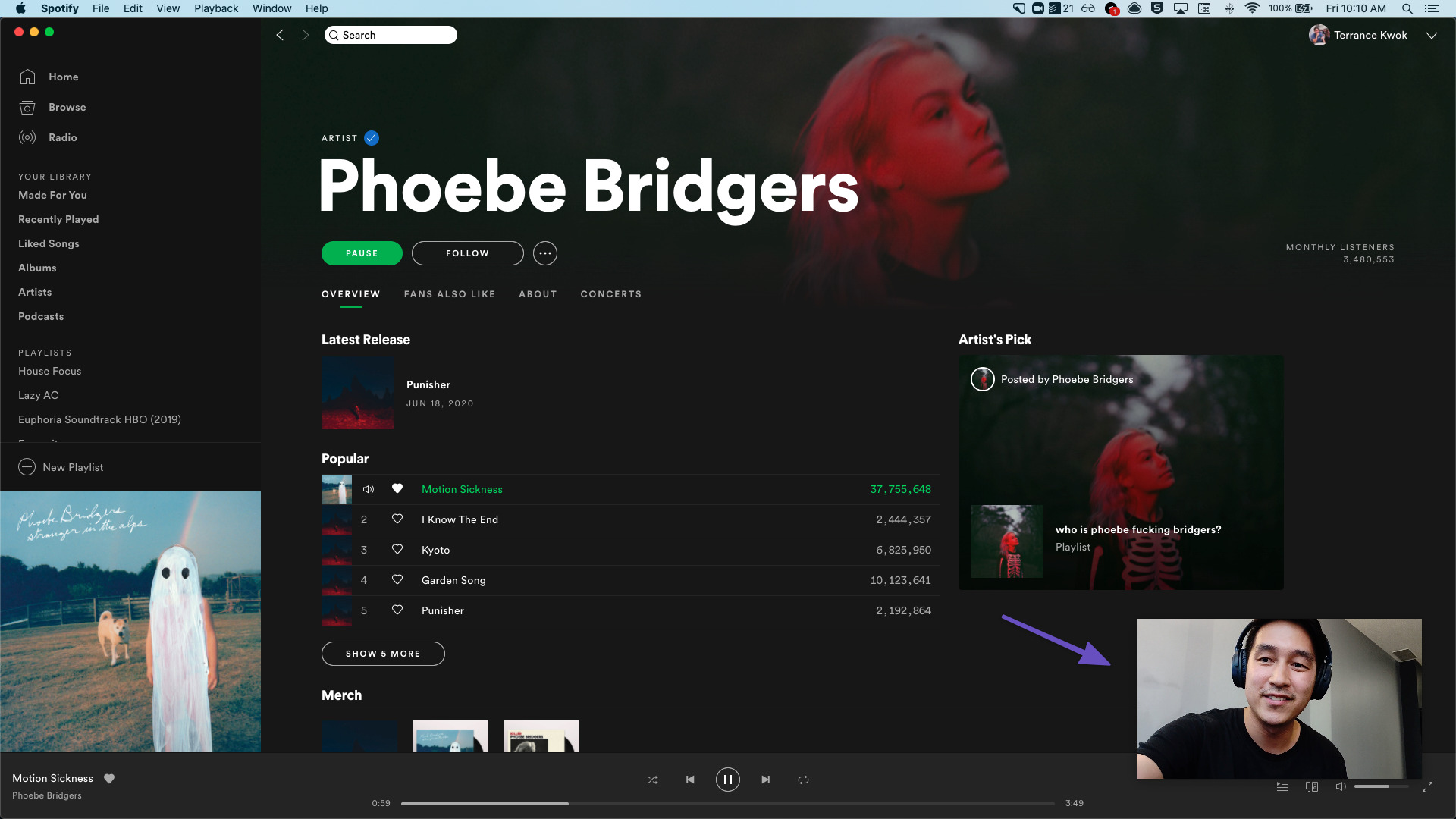
Want to watch a Vidyard video while doing something else? You can use Google’s Picture-in-Picture extension to watch the video in a smaller window while on another page. This is a great productivity hack, especially for long videos.
- Install the Picture-in-Picture Chrome extension.
- Open a Vidyard video’s sharing page and click play.
- Navigate to another website.
- Reposition the video in a desirable spot on your screen (optional).
- Continue watching while you do something else.
Video engagement hacks
28. Enable video replies
You can add a public comments section to the sharing page of your videos. It’s a great tool for getting direct reactions from your viewers or gathering feedback about your content.
Here’s how to enable video replies for Vidyard Starter plans:
- Select the Theme button in your Library’s nav bar
- Select Customize
- Under Video Details, toggle on Allow Replies
For Vidyard Teams and Enterprise plans:
- Select the Channels button in your Library’s nav bar
- Select Sharing Page
- Click Edit
- Under Settings, select Design
- Toggle on Allow Replies
Get more info about video replies in our Knowledge Base article.
29. Link to a specific time in a video
When you’re sharing a video, you might want viewers to focus on a specific segment. Time-stamped links are perfect for sending viewers right to the relevant content.
Here’s how to create a link that starts at an exact point in your video:
- While watching a video, pause at the moment you want to share
- Click the Sharing button in the corner
- Select Copy Sharing Page Link at Current Time
30. Send an email with an in-video Action
You may already know that you can add calls to action to your videos. (And if you didn’t, you’re missing out! Learn more about Actions here.)
Most often, Actions are used to link to a piece of content, or to a sales rep’s calendar. But did you know that you can also set up an Action to send an email?
Here’s how to do it:
- Create a new Custom Action
- In the Visual builder, enter your desired call to action text
- Add a link using your text as an anchor
- Set the link’s URL to “mailto:<desired email address>”
- You can also add other properties that are used with mailto: links, like a default subject and body
When the viewer clicks the Action link, it’ll open their default email client to draft a new message. Your email address will already be populated in the message, along with any subject or body you specify in the mailto: link.
You’re ready to close more deals with Vidyard
We hope these Vidyard hacks make engaging with your customers and prospects over video even easier. And if you’re curious about some of the features mentioned above, schedule a demo with one of our video experts. We’d love to show you how Vidyard can help your entire go-to-market team hit targets and increase revenue.
This post was originally published on July 6, 2020. It was updated on May 23, 2025.